The Short Answer
When AirPods won't connect to an iPhone, the cause is usually one of four things: a flat AirPod or case, Bluetooth switched off, the AirPods being connected to another of your devices, or a broken pairing. Work through it in this order: charge both AirPods in the case, check Settings > Bluetooth, pick the AirPods in the AirPlay list in Control Center, close the lid for 15 seconds, put them back into pairing mode, and only then reset them.
If they connect but keep disconnecting, jump to the section on automatic switching: it is the most common cause.
First: Are Your AirPods Even On?
Before touching any settings, find out whether the problem is the AirPods or the pairing. A connection needs AirPods that are charged and broadcasting.
- Put both AirPods in the case and plug the case in for a few minutes.
- Open the lid next to your iPhone. A battery card for the AirPods should appear on the screen. If it does, the AirPods are fine and the problem is the connection.
- No card? Open the lid and watch the status light. No light at all usually means the case is flat or faulty.
Another check: AirPods with the lid open advertise over Bluetooth Low Energy even when they aren't connected to anything. A Bluetooth scanner app such as FindMyGear, our app, lists nearby devices with their signal strength. If something appears and gets stronger as you bring the case closer, the AirPods are alive and you can stop worrying about the hardware. If nothing near you shows up with the lid open, the case or AirPods are likely flat or faulty.
1. Update Your iPhone
Apple's connection troubleshooting guide starts here: install the latest iOS (Settings > General > Software Update). New AirPods models often need a recent iOS to pair at all.
2. Charge Both AirPods
Put both AirPods in the case and make sure both are charging. One AirPod that doesn't sit on its contacts can stop the pair from connecting. If the case won't charge, clean its port gently, as Apple's guide for one AirPod not working suggests.
3. Check That Bluetooth Is On
Go to Settings > Bluetooth and check that the switch is on. The Bluetooth button in Control Center only disconnects accessories until tomorrow; it doesn't turn Bluetooth fully off. If Bluetooth is greyed out or nothing connects at all, Apple says to contact Apple Support.
4. Pick the AirPods in the AirPlay List
Put the AirPods in your ears, open Control Center and tap the AirPlay button (the triangle with circles) on the music controls. If your AirPods are listed, select them and play something with the volume up. Often the AirPods are connected, but the sound is going to the iPhone speaker or another device.
5. Close the Lid for 15 Seconds
Put both AirPods back in the case, close the lid, wait 15 seconds, then open it. That resets the connection without changing any settings.
6. Put the AirPods Into Pairing Mode
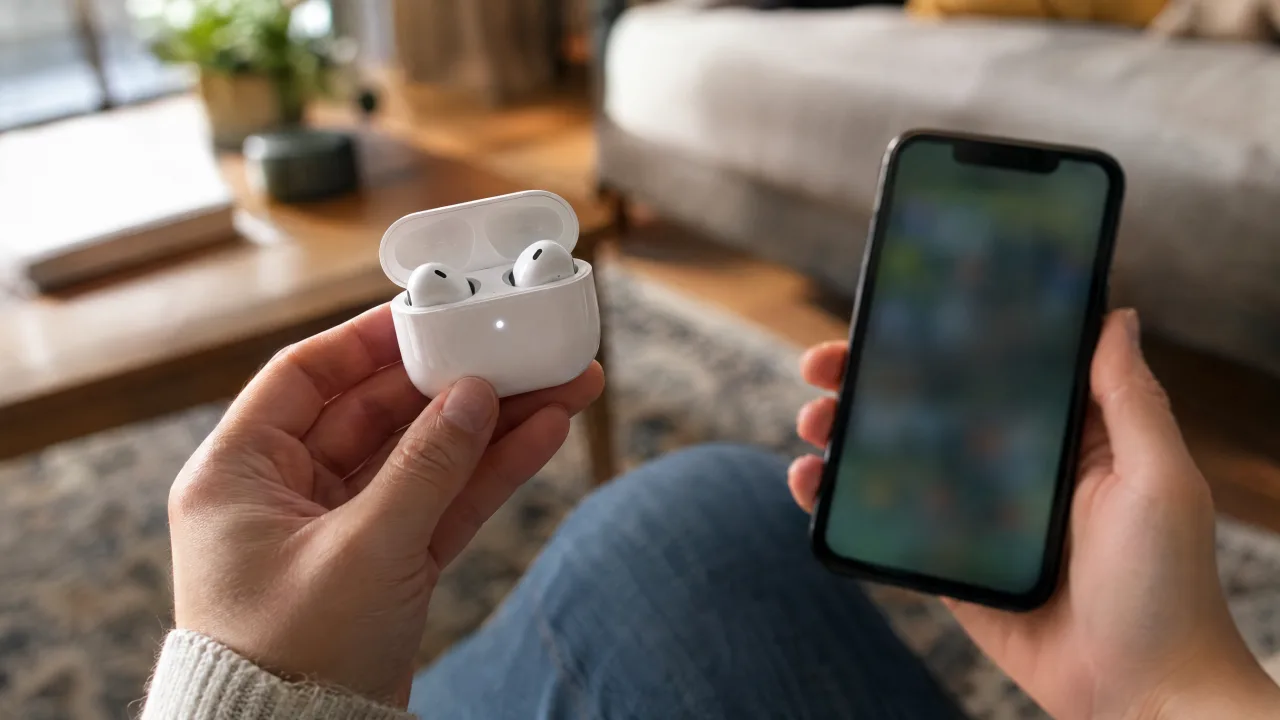
With the lid open:
- AirPods 4, AirPods 5, AirPods Pro 3: double-tap the front of the case until the status light flashes white.
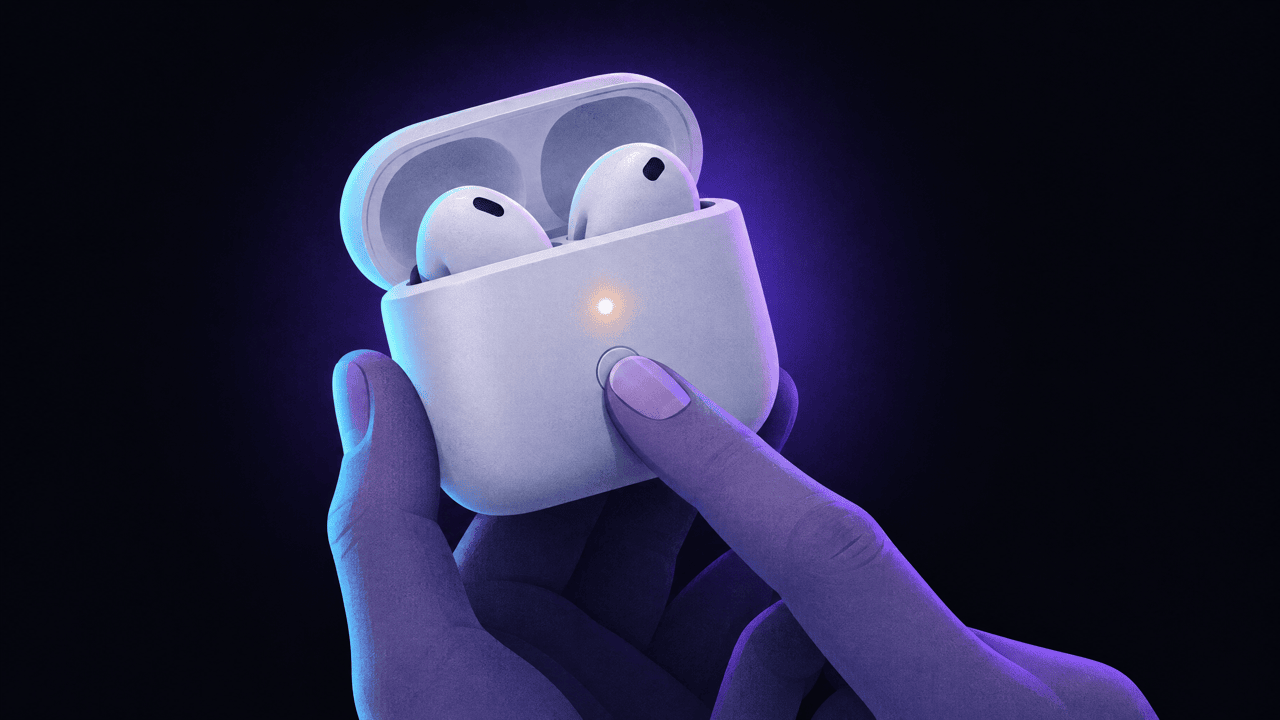
- All other AirPods and AirPods Pro: press and hold the setup button on the back of the case until the light flashes white.
Hold the open case right next to your iPhone and follow the steps on the screen. If no setup screen appears, go to Settings > Bluetooth and tap the AirPods under Other Devices.
7. Forget Them and Pair Again
If the AirPods are listed under My Devices but won't connect, tap the More Info button next to them, then Forget This Device. Put them in pairing mode again (step 6) and set them up as new.
8. AirPods Keep Disconnecting? Turn Off Automatic Switching
AirPods 2 and newer, every AirPods Pro and AirPods Max switch automatically between devices signed in to the same Apple Account. If your iPad or Mac starts playing a sound, the AirPods can jump to it, which looks exactly like a disconnect on your iPhone.
To stop it, as described in Apple's guide to switching devices:
- With the AirPods in your ears and connected, open Settings and tap your AirPods' name.
- Tap Audio & Routing, if you see it.
- Tap Connect to This iPhone.
- Choose When Last Connected to This iPhone.
Do the same on your Mac: System Settings > Bluetooth > the Info button next to your AirPods > Connect to This Mac > When Last Connected to This Mac.
Other causes of dropouts:
- Distance and obstacles. Bluetooth carries tens of metres in the open, much less through walls or your body. A phone in a back pocket on the opposite side is a classic cause.
- Interference. Crowded trains, gyms and offices full of Wi-Fi and Bluetooth devices make dropouts more likely.
- Low battery in one AirPod. Check the battery widget; one AirPod at 5% can drop out on its own.
- Automatic Ear Detection. When the sensors are dirty, the AirPods may think they are out of your ears and pause or disconnect. Clean them, or turn the feature off in your AirPods settings to test.
9. Reset the AirPods
If nothing above helped, reset them: forget the AirPods in Settings > Bluetooth, open the lid, hold the setup button for about 15 seconds (or double-tap the front of the case three times on AirPods 4, AirPods 5 and AirPods Pro 3) until the light flashes amber, then white. Our AirPods reset guide has the steps for every model, AirPods Max included.
Only One AirPod Connects
Apple's steps for one AirPod with no sound:
- Charge both AirPods in the case for 30 seconds.
- Open the case near your iPhone and check each AirPod's charge on the battery widget.
- Put the AirPod that doesn't work in your ear, leave the other in the case and close the lid.
- Play audio. If it works now, put both back, charge for 30 seconds and try both again.
- If it still doesn't work, reset the AirPods.
If one AirPod sounds quieter, check Settings > Accessibility > Audio & Visual > Balance and clean the speaker mesh.
"This AirPods Is Paired to Another Apple Account"
If Find My says the AirPods belong to someone else, no amount of re-pairing will help. Only the previous owner can remove them from their Apple Account. Our reset guide explains what they need to do.
Still Not Working?
- Try the AirPods with another phone or a Mac. If they fail everywhere, it's the AirPods; if they work elsewhere, it's your iPhone.
- Restart your iPhone.
- Contact Apple through AirPods service if the case won't charge or an AirPod is never detected.
FAQ
Why are my AirPods not connecting to my iPhone?
Most often the AirPods are flat, connected to another device you own, or their pairing is broken. Charge them, pick them in the AirPlay list in Control Center, then put them back into pairing mode.
Why do my AirPods keep disconnecting?
Usually automatic switching moves them to your iPad or Mac. Set Connect to This iPhone to When Last Connected to This iPhone. Low battery in one AirPod, distance and interference are the other common causes.
How do I force my AirPods to pair?
Open the lid and hold the setup button on the back of the case (or double-tap the front on AirPods 4, AirPods 5 and AirPods Pro 3) until the light flashes white, then hold the case next to your iPhone.
What does a flashing amber light mean?
With the lid open, flashing amber usually means a pairing problem: the AirPods need to be set up again, and a reset is the fix. During a reset, amber followed by white means the reset worked.