What the Messages in Find My Mean
Apple explains each status in its guide to locating a lost device:
- A location with an older time: Find My is showing the last known location. If a device's battery runs out, you can see its last known location for up to seven days.
- No location found: more than seven days have passed since the device or item last reported its location, or it can't be located right now.
- Offline: the device is off, out of battery or has no connection.
- Not sharing location • Online: the device is on and connected, but something such as Location Services is stopping it from sharing its location.
- The item isn't listed at all: usually a software issue. Apple says to update to the latest iOS, and notes that a second-generation AirTag needs iOS 26.2.1 or later.
How Find My Actually Locates an AirTag
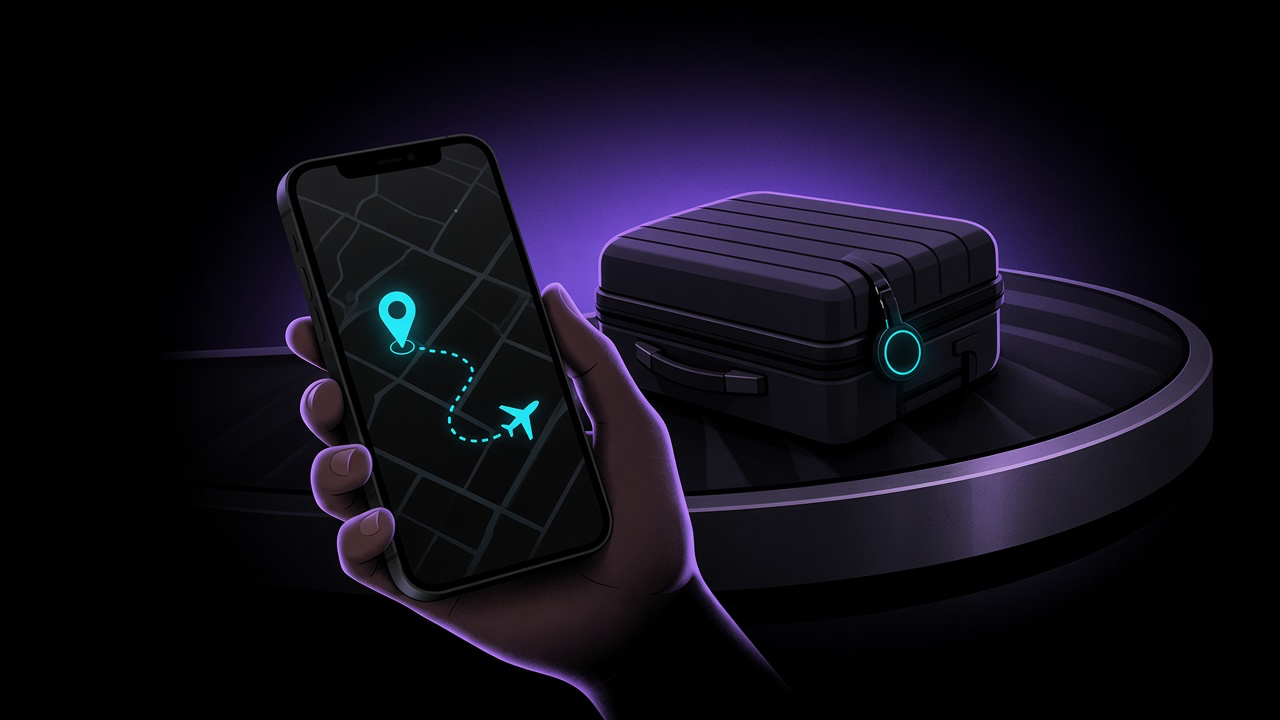
An AirTag has no GPS and no internet connection. It sends out a Bluetooth signal, and any Apple device that passes nearby relays its approximate location to you, anonymously and encrypted. Apple describes this Find My network as more than a billion Apple devices.
That explains most "not updating" problems. If no Apple device passes close enough, nothing reports the AirTag, and the location stays where it was last seen.

Step 1: Check the Settings on Your iPhone
Apple's guides to turning on Find My and adding an AirTag list the settings that matter:
- Find My is on: Settings, your name, Find My, then Find My iPhone.
- Find My network is on, so devices can be found even when offline, and Send Last Location is on, so your iPhone reports its location before the battery dies.
- Bluetooth is on.
- Location Services is on, and in its list, Find My has access with Precise Location turned on.
- Your Apple Account has no pending alerts. Tap your name in Settings and finish anything it asks for. If you see a notification that iCloud data isn't syncing, tap to resume it.
- iCloud Keychain is on.
- You have a good Wi-Fi or mobile connection.
- Restart your iPhone.
If It's an AirTag
- Is it in a quiet area? A garage, a rural road or a storage unit may simply have no Apple devices passing by. Its location will update when one does.
- Replace the battery. A low or dead battery stops updates. See how to replace an AirTag battery.
- Update iOS, especially for a second-generation AirTag.
- Remove and add it again, or reset it, if it still misbehaves. Our guide explains how to reset an AirTag.
If It's AirPods
When the Find My network is on, Apple says you can see the location of AirPods 3, AirPods 4 with Active Noise Cancellation, AirPods Pro and AirPods Max for up to 24 hours after they last connected. After that, or if they are out of battery, Find My can only show where they were last seen. Our guide to finding lost AirPods covers the offline and dead-battery cases step by step.
If It's an iPhone or iPad
A device that is switched off or has no connection shows as Offline. If Send Last Location was on, it tried to upload its location just before the battery ran out. Apple adds that if you turned on Stolen Device Protection and changed your Apple Account password in an unfamiliar location, your devices' locations may not be visible on iCloud.com/find.
When Find My Gets You Close but Not All the Way
Sometimes the map shows the right building or room, but the device is nowhere to be seen. If it still has battery, its own Bluetooth signal can take you the rest of the way.
What FindMyGear Can and Can't Do Here
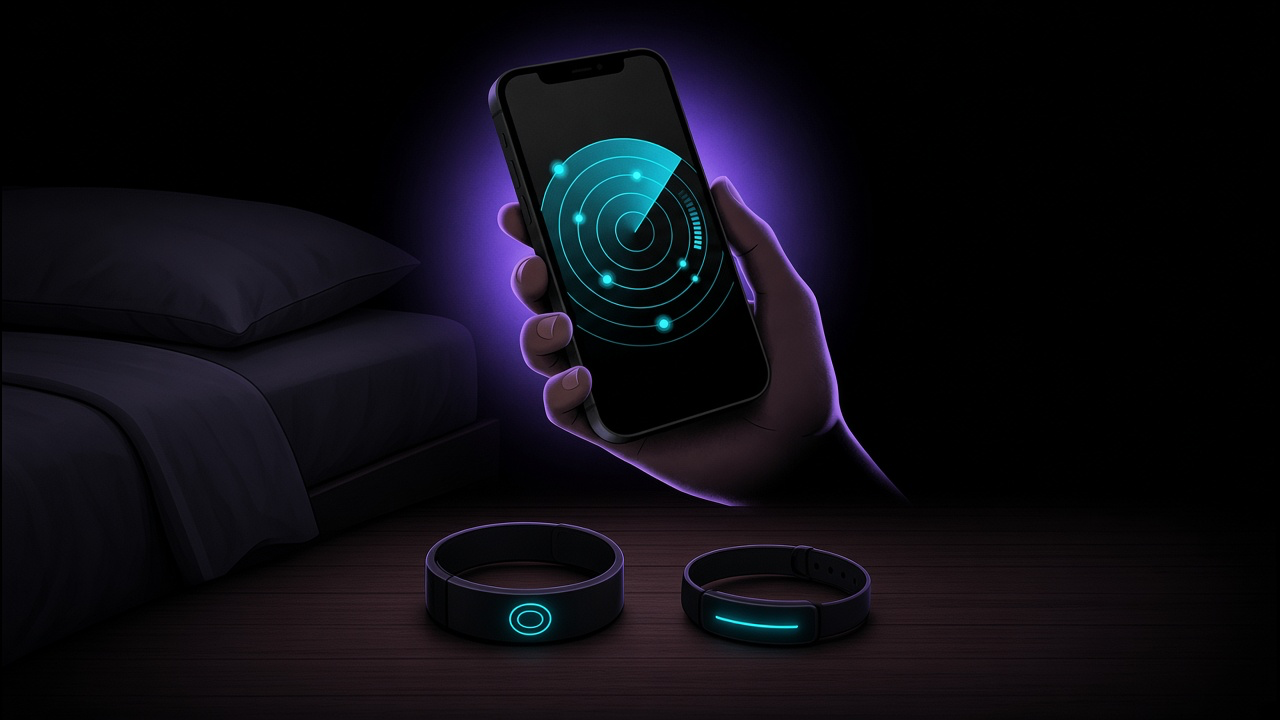
FindMyGear lists the Bluetooth devices broadcasting around you and shows a signal strength that rises as you get closer. It works without Find My at all, which helps when Find My only gets you to the right room, or for devices that aren't in Find My.
It can't show locations on a map, reach anything outside Bluetooth range, or find a device whose battery is dead.