The Short Answer
To set up an AirTag, pull out the plastic tab so the AirTag plays a sound, unlock your iPhone and hold the AirTag next to it. Tap Connect, pick a name such as Keys or Bag, confirm that it will be linked to your Apple Account, and tap Done. It takes under a minute.
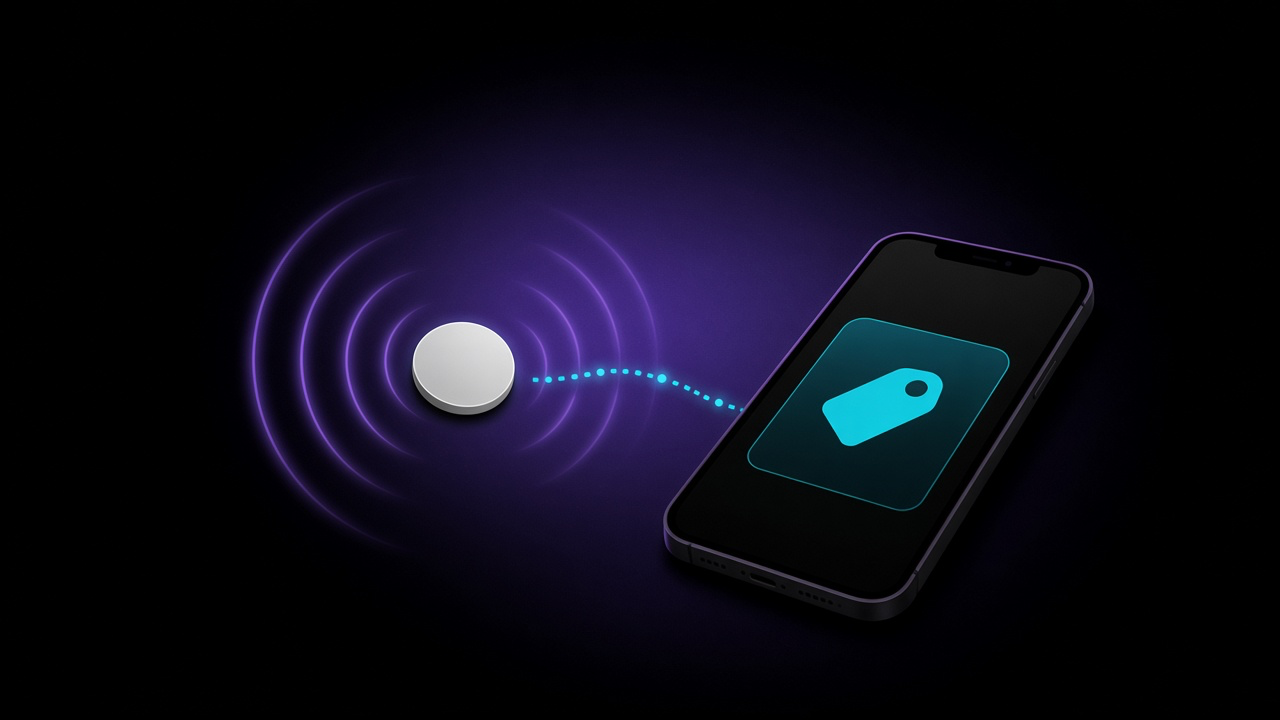
An AirTag has no GPS, no SIM card and no internet connection. It sends a small Bluetooth signal, and Apple devices that pass nearby report its location to you, encrypted, through the Find My network.
What You Need
From Apple's setup guide:
- An iPhone or iPad. iOS or iPadOS 14.5 or later for the original AirTag, and iOS or iPadOS 26.2.1 or later for the AirTag (2nd generation).
- Bluetooth on, and Location Services on with Find My allowed (Precise Location gives the best results).
- iCloud Keychain and the Find My network turned on, and your Apple Account fully set up.
- A working Wi-Fi or mobile data connection during setup.
You can't set up an AirTag with an Android phone. Android can read a lost AirTag's message over NFC, but registering one needs an iPhone or iPad.
How to Set Up an AirTag, Step by Step
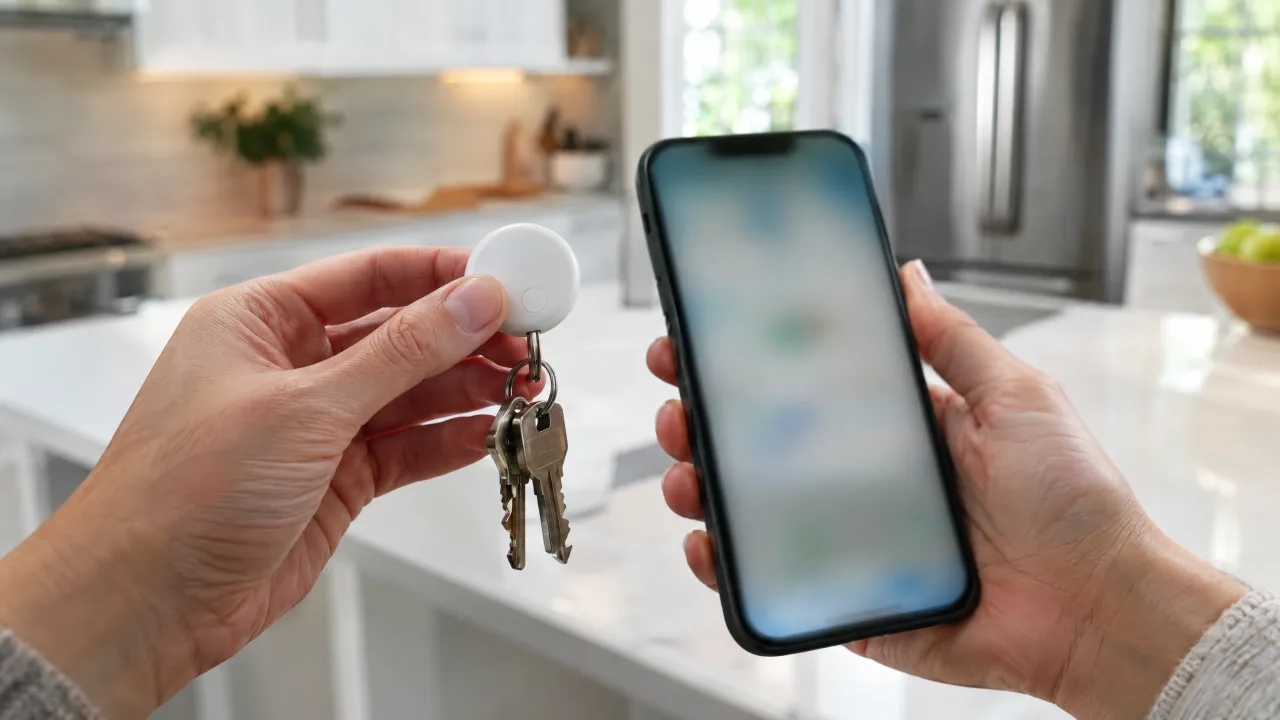
- Pull the tab. Remove the wrapping and pull out the battery tab. The AirTag plays a short sound: the battery is connected.
- Unlock your iPhone and go to the Home Screen.
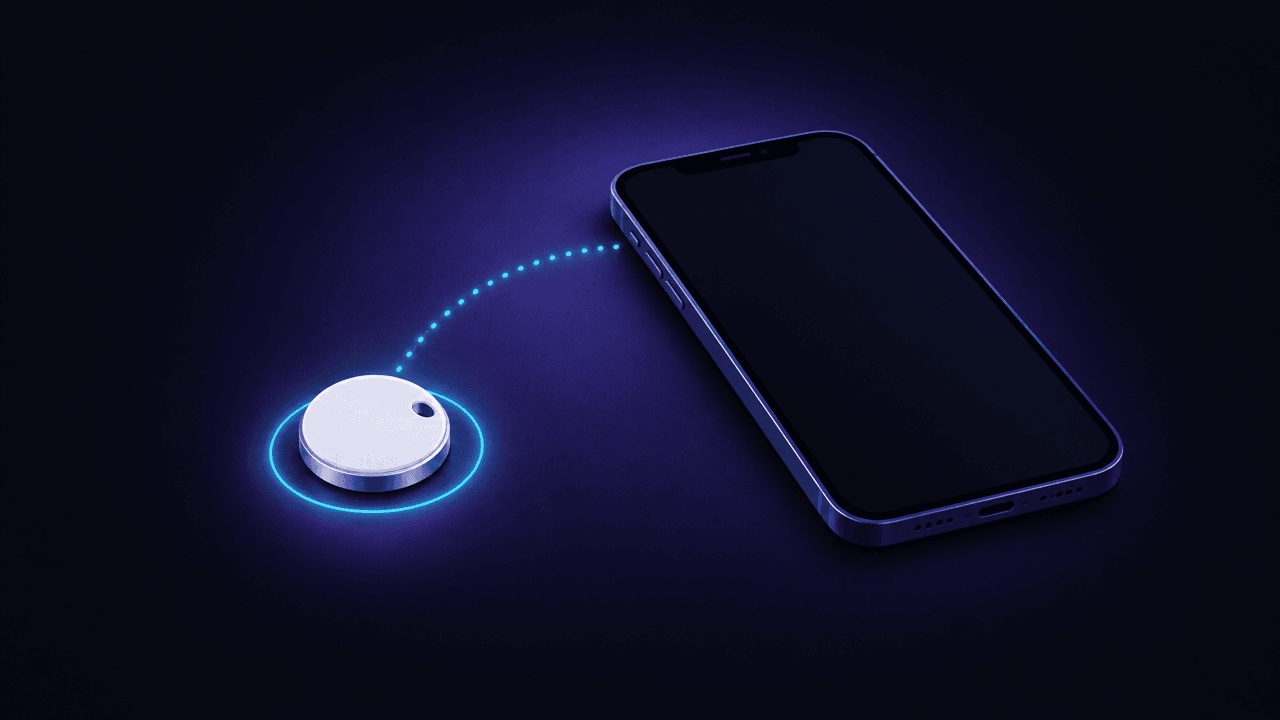
- Hold the AirTag next to the iPhone. A setup card slides up. Tap Connect.
- Name it. Choose a category (Keys, Bag, Backpack and so on), or choose Custom Name and pick an emoji.
- Link it to your Apple Account. Accept the prompt. An AirTag can belong to only one Apple Account at a time.
- Tap Done. The AirTag now appears in the Find My app under Items.
Setting up several AirTags? Bring them close one at a time. If you see "More than one AirTag detected", move the others away.
How to Add an AirTag in the Find My App Instead
If the setup card doesn't appear, add it by hand, as Apple describes:
- Open Find My and tap Items.
- Tap the Add button (+).
- Tap AirTag (or Other Item for a third-party tracker) and follow the steps on screen.
How Does an AirTag Work?
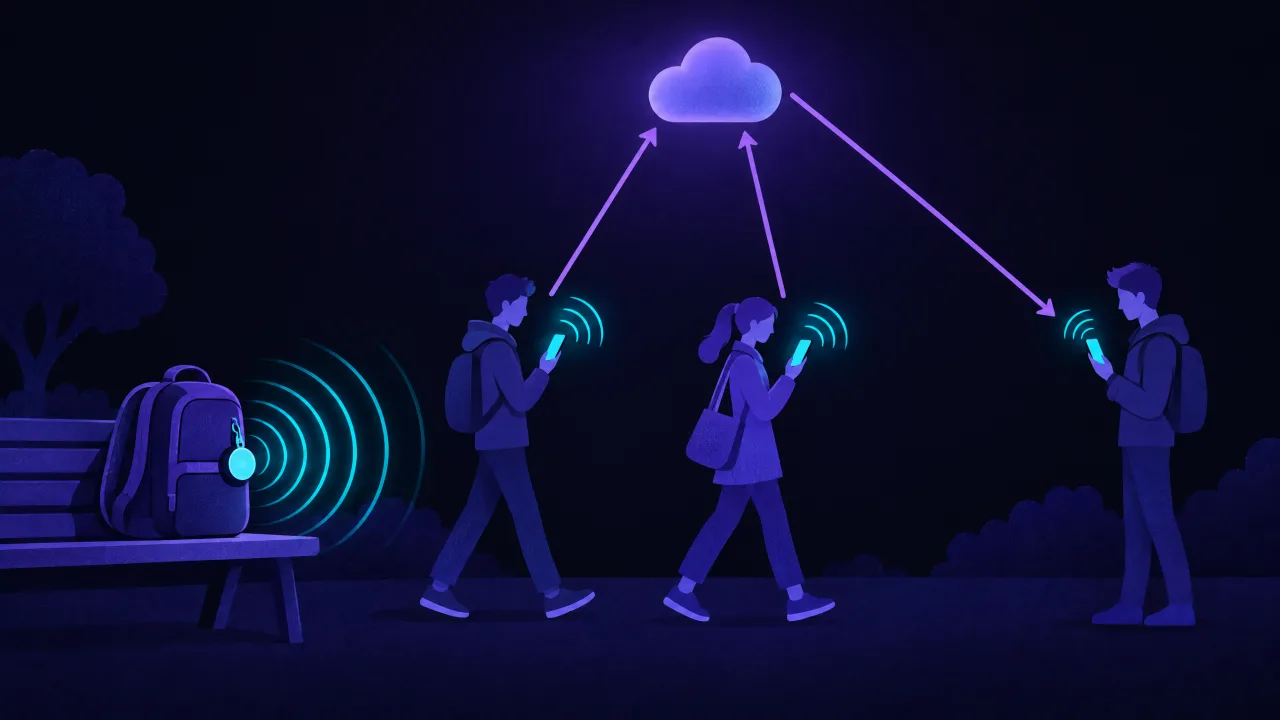
An AirTag does one simple thing: it broadcasts a short Bluetooth signal. Everything else happens in other devices.
- Near you, your iPhone hears that signal directly. You can play a sound, and on supported iPhones Precision Finding shows an arrow and the distance.
- Away from you, any nearby iPhone, iPad or Mac that is part of the Find My network picks up the signal and sends its own location to iCloud. You see that location in Find My.
Apple's Find My security overview describes how this stays private. The exchange is end-to-end encrypted and anonymous, and Apple doesn't know who the finder is or whose item was found. The key the tag broadcasts is replaced roughly every 15 minutes, so a passer-by can't follow one tag by a fixed identifier.
Does an AirTag work without internet?
The AirTag itself never needs internet: it only uses Bluetooth. What needs a connection is the chain around it. The iPhone that passes by needs data to report the location, and your phone needs data to show it on the map. In a remote place with no people and no signal, an AirTag can only be found once you are back in Bluetooth range.
Does an AirTag have GPS?
No. The location you see is the position of the Apple device that last heard it. In a busy city that is usually accurate to a building or a street; in a quiet area the last update can be hours old.
How far does an AirTag work?
There are three different ranges: Precision Finding up close, Bluetooth within roughly a home or a floor, and the Find My network with no fixed limit. Our AirTag range guide explains each one.
Setting Up a Find My Compatible Tracker
Cheaper trackers sold as "AirTag alternatives" often use the same Find My network. Look for the "Works with Apple Find My" badge on the box. To add one:
- Put the tracker into pairing mode as its maker describes (usually a battery tab or a long press on its button).
- Open Find My, tap Items, then the Add button.
- Tap Other Item and follow the steps.
Once added, it shows up in Find My like an AirTag and uses the same network. Features such as Precision Finding depend on the model, so check the maker's page.
AirTag Not Connecting?
Apple's checklist, in order:
- Update your iPhone to the latest iOS. An AirTag (2nd generation) needs iOS 26.2.1 or later.
- Check that Bluetooth and Location Services are on, with Find My allowed and Precise Location on.
- Check that iCloud Keychain and the Find My network are on.
- Make sure you have a strong Wi-Fi or mobile data connection, then restart your iPhone.
- The setup card disappeared? Lock the iPhone, wake it, wait 15 seconds and see if it comes back.
- Replace the battery if the AirTag stays silent; our battery guide shows how to open it.
- Still nothing: reset the AirTag and try again.
If Find My says the AirTag is paired to another Apple Account, only that person can release it. The reset guide explains what they need to do.
Share an AirTag With Family or Friends
You can share an AirTag, or a compatible tracker, with up to five people, according to Apple's sharing guide. They can see it on the map, play a sound and use Precision Finding, and they don't get tracking alerts while it travels with them.
Requirements: two-factor authentication on your Apple Account, iCloud Keychain on for everyone, iOS 17 or later, and no child accounts.
- Open Find My, tap Items and tap the AirTag.
- Below Share AirTag, tap Add Person.
- Choose the people and send the invitation. They need to accept it.
Three Things to Do Right After Setup
- Add your contact details to Lost Mode when something goes missing: in Find My, tap the item, then Show Contact Info below Lost AirTag. Anyone who finds it can tap it with a phone and see your message, as Apple's Lost Mode guide explains.
- Remember the battery. It is a CR2032 coin cell and lasts more than a year; Find My tells you when it runs low.
- Keep track of your limit. Find My holds up to 32 items, and AirPods count as two or three items each.
The Last Few Metres
Find My gets you to the right building; Precision Finding and the sound get you to the right spot. For anything else with Bluetooth that has no Find My, such as an older pair of earbuds or a fitness band, FindMyGear, our app, lists the Bluetooth devices around your iPhone with a live signal reading that rises as you get closer, so you can walk hotter or colder towards it.
FAQ
Do you need an iPhone to set up an AirTag?
Yes, an iPhone or iPad with iOS or iPadOS 14.5 or later (26.2.1 for the 2nd generation). An Android phone can't register an AirTag.
How many AirTags can I have?
Find My holds up to 32 items per Apple Account, including shared items and accessories.
Can I set up a used AirTag?
Only after the previous owner removes it from their Apple Account. Then reset it and set it up as new.
Which AirTag do I have?
Open Find My, tap Items, tap the AirTag's name and then its address: the model is listed there. Our AirTag 1 vs AirTag 2 comparison covers the differences.