The Short Answer
Samsung's finder for Galaxy Buds is Samsung Find (also called SmartThings Find). It can show the last location, ring the buds and alert you when they are found, but only if the buds are registered to your Samsung account, which happens when you set them up with a Samsung phone or tablet.
- You have a Galaxy phone: open Samsung Find or the SmartThings app and use Find.
- You only have an iPhone: sign in to Samsung's Find website in Safari. If your buds were ever set up with a Samsung account, they appear there.
- They never touched a Samsung account: Samsung can't see them. Search by Bluetooth signal and by hand, both below.
Option 1: Samsung Find and SmartThings Find
According to Samsung's support page, you can find Galaxy Buds in several places, all signed in with your Samsung account:
- SmartThings app: Life tab, then Find. It offers a nearby search rather than Ring.
- Samsung Find app, or Find My Earbuds in the Galaxy Wearable app.
- The SmartThings Find and Samsung Find websites, which run in any browser, including on an iPhone.
From there you can see where the buds were last recorded, make them ring, and turn on a notification for when they are found.
What the map can and can't tell you
- It shows the last recorded location. Samsung notes that for models such as Buds Live, Buds Pro, Buds2 and Buds2 Pro, the location is where the buds were last seen, which may not be where they are now if someone picked them up.
- Ringing needs a Bluetooth connection. Samsung's UK guide says the Ring feature works only when the earbuds and the phone are connected over Bluetooth. A bud in a closed case, or out of range, stays silent.
- The case alone can't be located. The same guide states that if only the charging case is lost, its location can't be checked separately.
- Older models have fewer options. Samsung lists Galaxy Buds FE, Galaxy Buds2 and earlier as not supporting a nearby search while the buds are inside the charging case.
Option 2: Follow the Bluetooth Signal From Your iPhone
If the buds are nearby but won't ring, or never had a Samsung account, use the signal instead. Galaxy Buds are Bluetooth Low Energy devices, and a Bluetooth scanner on your iPhone shows how strong each nearby signal is.

- Open the case if you still have it, and take the other bud out, so the lost one is more likely to be broadcasting.
- Open a Bluetooth scanner and look for your buds by name, or for a device whose signal changes as you move.
- Walk slowly in one direction. If the signal gets stronger, keep going; if it drops, turn around.
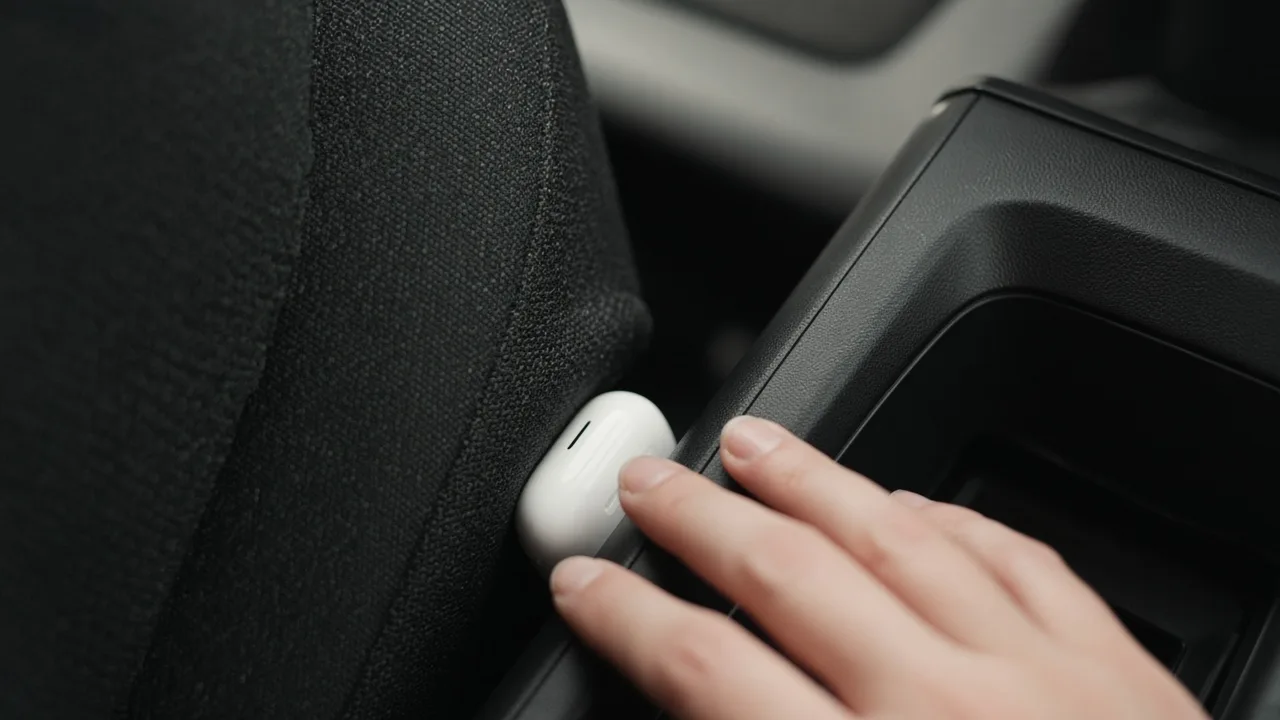
- When the signal peaks, search that spot by hand: sofa, bed, bag, car seat.
FindMyGear does this on iPhone, with a live signal reading that rises as you get closer. It only sees buds that have battery and are broadcasting: a dead bud, or one sealed in a closed case, may stay invisible to any scanner.
Lost Just One Bud?
A single bud is the hardest to find, because it is small and its battery is the one most likely to run out. Search as soon as you notice, while it still has charge:
- Try Ring in Samsung Find first: it works if the lost bud is still connected and has battery.
- Use the Bluetooth search above, starting where you last wore them.
- Check pockets, the washing machine and the car before you buy a replacement.
Where Galaxy Buds Usually Turn Up
- Between sofa cushions and under car seats
- In jacket and hoodie pockets, and in the laundry
- In the gym bag or locker
- Under the pillow or in the bed, if you sleep with them
- On the floor under the desk, near the charger
Make Them Easier to Find Next Time
- Set them up with your Samsung account, even if you mainly use an iPhone, so the Find website can see them.
- Turn on notifications for when they are left behind, which Samsung offers in its Find apps.
- Put a tracker on the case. Since the case can't be located on its own, a small tracker in a case cover fills the gap, an option Android Authority suggests.