The Short Answer
Most modern TV remotes can be found with your phone or your voice. Apple TV: open Control Center on your iPhone, tap the Apple TV Remote, then tap Find next to your remote. Roku: say "Hey Roku, where's my remote?" or use the Roku app, if your remote has a speaker. Fire TV: say "Alexa, find my remote" to an Echo, if you have an Alexa Voice Remote Pro. Google TV Streamer: press the button on the back of the streamer and the remote beeps.
If your remote has none of these features, it comes down to a smart search of the house. Both are below.
Find an Apple TV Remote With Your iPhone
Apple added a remote finder in iOS 17. According to Apple's support page, it works with the Apple TV Remote or Siri Remote (2nd generation) or later, and needs an iPhone with iOS 17 or later and an Apple TV with tvOS 17 or later.
- Open Control Center on your iPhone (swipe down from the top-right corner).
- Tap the Apple TV Remote button. If it isn't there, add it in Control Center first.
- Tap the device list at the top and tap Find next to your lost remote.
- Walk around and watch the circle: it grows and the text changes from far to near to here as you get closer.
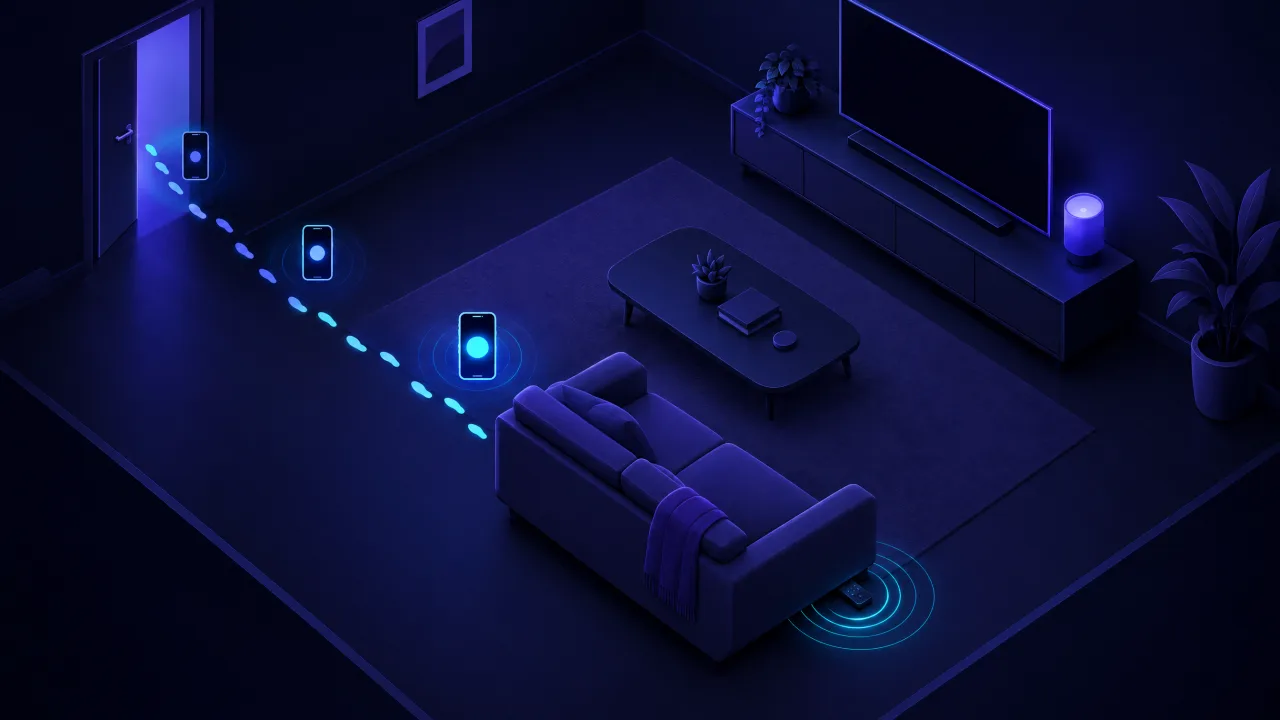
The remote is not a Find My item, so it won't appear in the Find My app and can't be located from another house. It only works nearby, over Bluetooth.
If the Find button doesn't appear
- Your remote is the first-generation Siri Remote, the slim black one with a glass touch surface at the top. It doesn't support Find.
- Your iPhone or Apple TV is out of date. Update both to version 17 or later.
- The Apple TV is asleep or unplugged. Wake it up; it's the Apple TV that connects to the remote.
- The remote's battery is flat. A dead remote sends nothing, so nothing can find it. Search by hand (see below).
Use your iPhone as the remote meanwhile
The same Apple TV Remote in Control Center controls your Apple TV fully, so you can keep watching while you look. Apple also notes you can pair a replacement Siri Remote or use a network-based remote if the old one is gone for good.
Find a Roku Remote
Roku's lost remote finder works with any Roku voice remote that has a built-in speaker, such as the Roku Enhanced Voice Remote and the Voice Remote Pro. Check the back of a remote you still have: small speaker holes mean it's supported.
- Say "Hey Roku, where's my remote?" if hands-free voice is on (Voice Remote Pro), or
- Open the Roku mobile app, tap Devices, tap the three dots next to your Roku and choose Ping Remote, or
- Press the lost remote finder button on Roku devices that have one.
The remote plays a sound for up to 60 seconds; press any button to stop it. Roku says it stays silent if the batteries are dead or the remote is out of range of your network.
Most simple Roku remotes have no speaker. For those, the Roku app works as a full remote while you search.
Find a Fire TV Remote
Amazon's remote finder works with the Alexa Voice Remote Pro. Per Amazon's help page, you can:
- Say "Alexa, find my remote" to any Echo or other Alexa device on your account, or
- Open the Fire TV app, go to the Remote tab and use Remote Finder.
The remote has to be paired to a Fire TV or Echo Show on the same account and be within about 30 feet of it. It rings for up to five minutes or until you press a button.
Standard Alexa Voice Remotes don't ring. Use the Fire TV app as a remote while you search.
Find a Google TV Remote
The Google TV Streamer has a button on the back: press it and the remote plays a sound, 9to5Google explains. You can also trigger it from the Google Home app: open the streamer's settings and tap Find my remote. The remote stays in touch over Bluetooth, so it works best in the same room or the next one.
Where Lost Remotes Usually Hide
Before you tear the house apart, check the places remotes end up most:
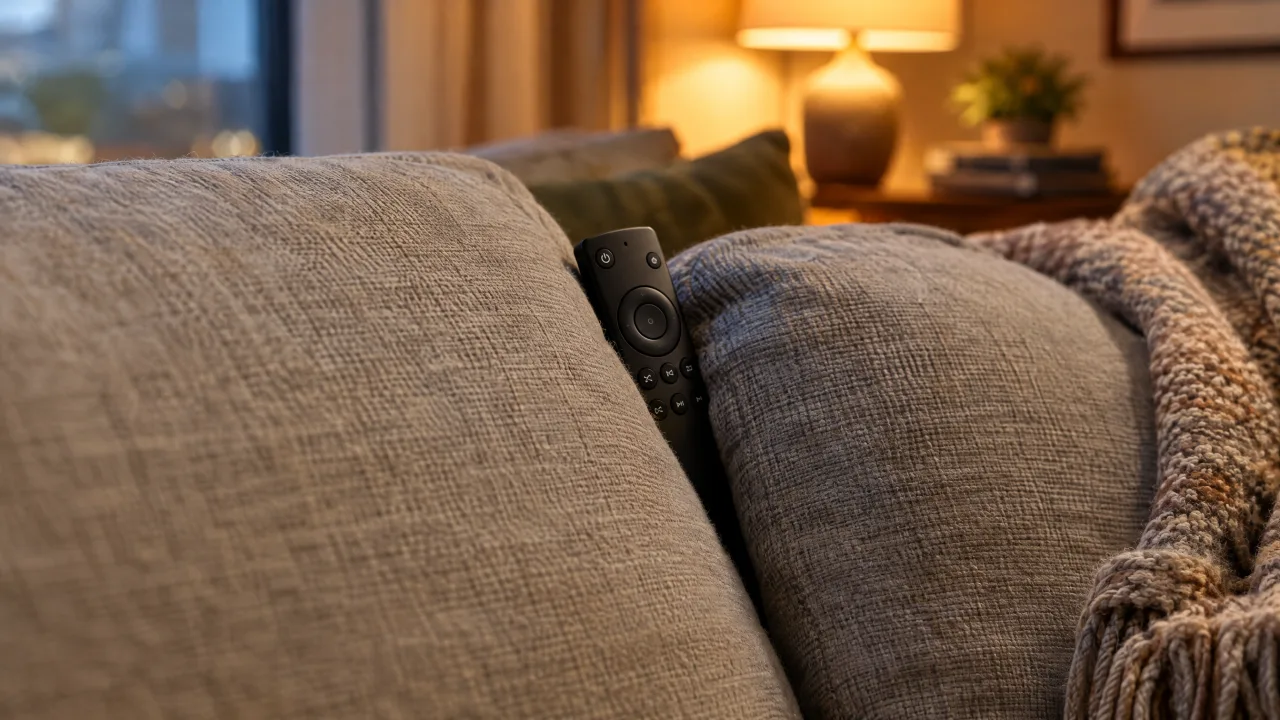
- Under and between sofa cushions, and in the gap between the seat and the frame
- Under the sofa or armchair, especially with a recliner mechanism
- In blankets, throws and pillow cases on the sofa or bed
- In the kitchen or bathroom, where you put it down while doing something else
- In a jacket or hoodie pocket you were wearing on the sofa
- In the fridge, a drawer or a toy box if there are kids or a dog in the house
- Inside the recycling or under takeaway boxes from last night
Search systematically: one room at a time, starting with the room where you last watched TV, and use your phone's torch under furniture.
Scan for It With FindMyGear
The Siri Remote, Fire TV voice remotes and the Google TV remote are Bluetooth Low Energy devices. FindMyGear scans for Bluetooth devices around your iPhone and shows a live signal reading that rises as you get closer, so you can walk hotter or colder towards a device that is broadcasting. It's handy when the built-in finder isn't available, for example with an older iPhone, or when you want to see the signal strength rise and fall as you move from room to room.
It only sees a remote that is powered and broadcasting over Bluetooth, and many remotes appear without a name. Infrared-only remotes and most basic Roku remotes don't use Bluetooth at all, so no app can see them.
Never Lose It Again
- Keep a home for it: a tray or a small stand next to the TV.
- Get a remote case with a tracker slot if you lose it often. An AirTag or another Find My tracker in the case turns the remote into a Find My item.
- Pick a remote with a finder when you replace one: Siri Remote (2nd generation or later), a Roku voice remote with a speaker or the Alexa Voice Remote Pro.
- Charge the Siri Remote now and then; a dead remote can't be found by any app.