The Short Answer
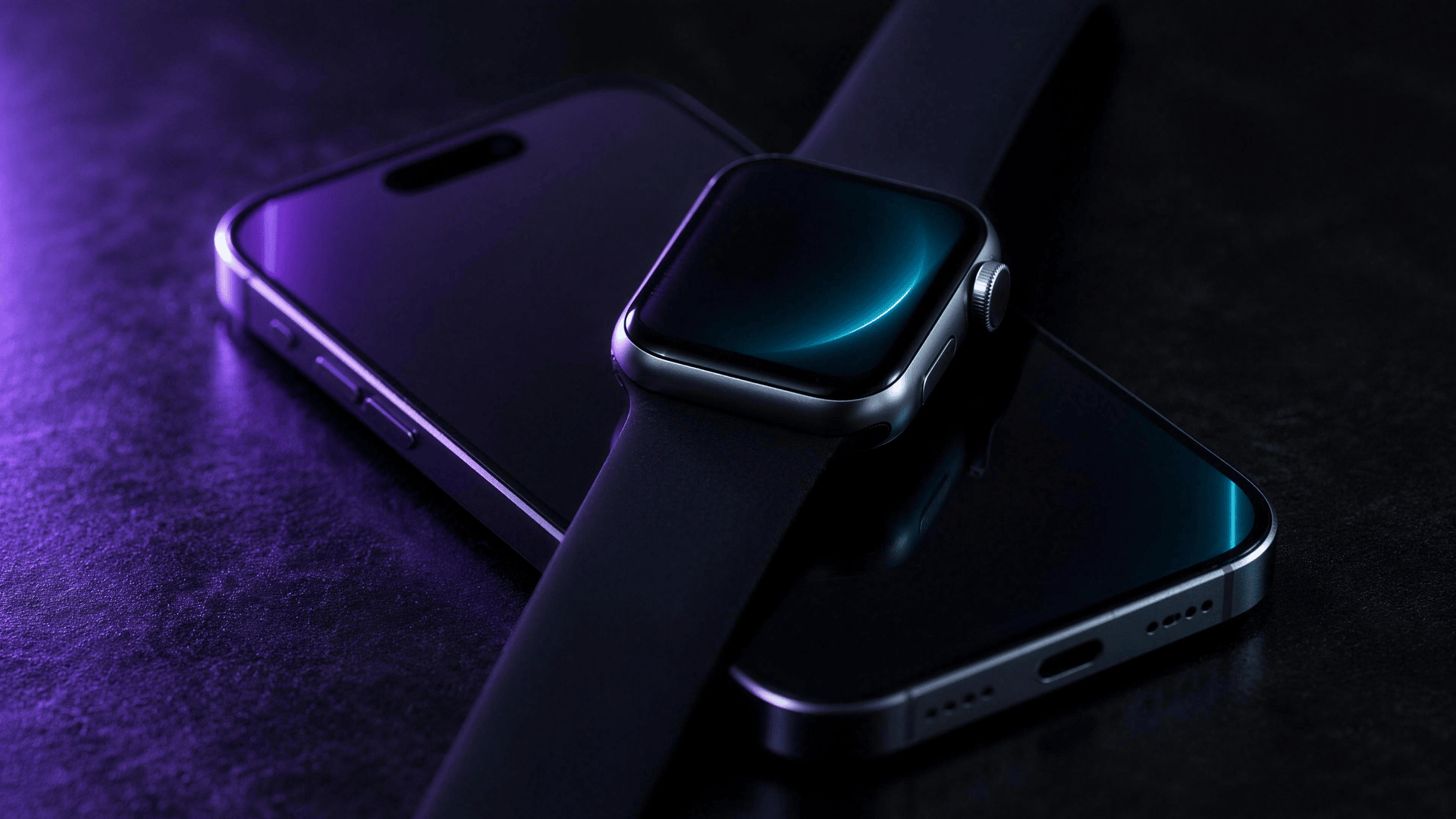
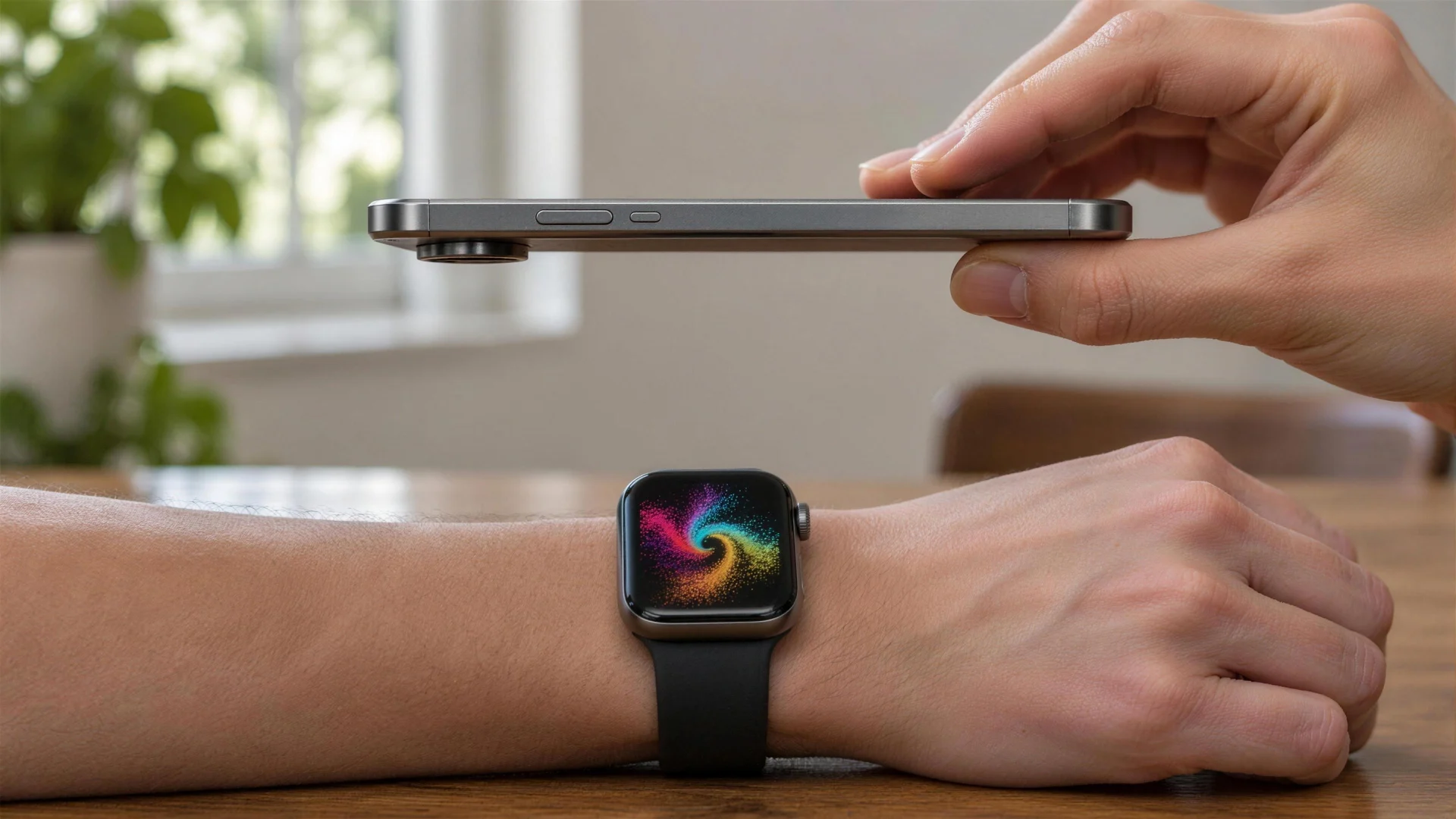
To connect an Apple Watch to an iPhone, turn the watch on, put it on your wrist and hold it close to your unlocked iPhone. When Use your iPhone to set up this Apple Watch appears, tap Continue, then hold the iPhone over the animation on the watch until it says the watch is paired. If the message never appears, open the Apple Watch app and tap All Watches > Add Watch.
Pick the section for your situation:
| Your situation | What to do |
|---|---|
| New Apple Watch, or one that was erased | Pair it with the camera animation, below |
| Moving your watch to a new iPhone, and you still have the old one | Back up the old iPhone, then set up the new one from that backup |
| New iPhone, old one already gone or erased | Erase the watch and pair it again |
| The iPhone asks for a passcode or shows Activation Lock | The watch is still linked to an iPhone or an Apple Account |
| The animation doesn't work | Use Pair Apple Watch Manually |
What You Need
According to Apple's setup guide:
| Apple Watch | iPhone you need |
|---|---|
| Apple Watch Series 12, Apple Watch Ultra 4 | iPhone 11 or later with iOS 27 or later |
| Apple Watch SE 3 | iPhone 11 or later with iOS 26 or later |
| Earlier models | May work with older iPhones and iOS versions; the iPhone tells you if it needs an update first |
Before you start, update the iPhone, turn on Bluetooth, and make sure it's connected to Wi-Fi or a cellular network.
How to Connect Apple Watch to iPhone
- Press and hold the side button on the watch until the Apple logo appears, then put the watch on your wrist.
- Unlock your iPhone and hold the watch close to it.
- When Use your iPhone to set up this Apple Watch appears, tap Continue. If it doesn't appear, open the Apple Watch app, tap All Watches, then Add Watch.
- Tap Set Up for Myself, or Set Up for a Family Member if the watch is for someone else in your family.
- Hold the iPhone over the watch so the animation is centered in the viewfinder, and wait until it says the watch is paired.
- Tap Set Up as New Apple Watch, or restore from a backup if you've used an Apple Watch with this iPhone before.
- Choose your wrist, agree to the terms, and sign in with your Apple Account password if asked.
- Create a passcode. You can skip it, but Apple Pay needs one.
- Keep the watch and iPhone close together until the watch face appears. They keep syncing in the background after that.
If the animation doesn't work
If you can't use the camera, the animation doesn't appear or the iPhone can't read it, tap Pair Apple Watch Manually and follow the prompts.
How to Connect Apple Watch to a New iPhone
If you still have the old iPhone, move the watch over with your backup so your data comes with it. Apple's steps for pairing your Apple Watch with a new iPhone:
- Check you have what you need: your Apple Account and password, the watch passcode, Wi-Fi for both iPhones, and at least 50 percent charge on the watch and the new iPhone.
- Update the old iPhone and the watch to the newest versions. Apple says this can take from several minutes to an hour.
- Check Health sync: if you use iCloud, go to Settings > [your name] > iCloud > Saved to iCloud > Health and turn on Sync this iPhone. If you back up to a computer, encrypt the backup so Health and Activity data is saved.
- Back up the old iPhone to iCloud or your computer. Backing up the iPhone also backs up the watch.
- Set up the new iPhone from the most recent backup.
- When the new iPhone asks if you want to use your Apple Watch, make sure the watch is unlocked and on your wrist, then tap Continue.
- If it doesn't ask, open the Apple Watch app on the new iPhone with the watch unlocked on your wrist and follow the prompts.
If the Apple Watch app shows Start Pairing instead, the watch has to be unpaired first. Then you can set it up again with the new iPhone.
How to Connect Apple Watch to a New iPhone Without the Old One
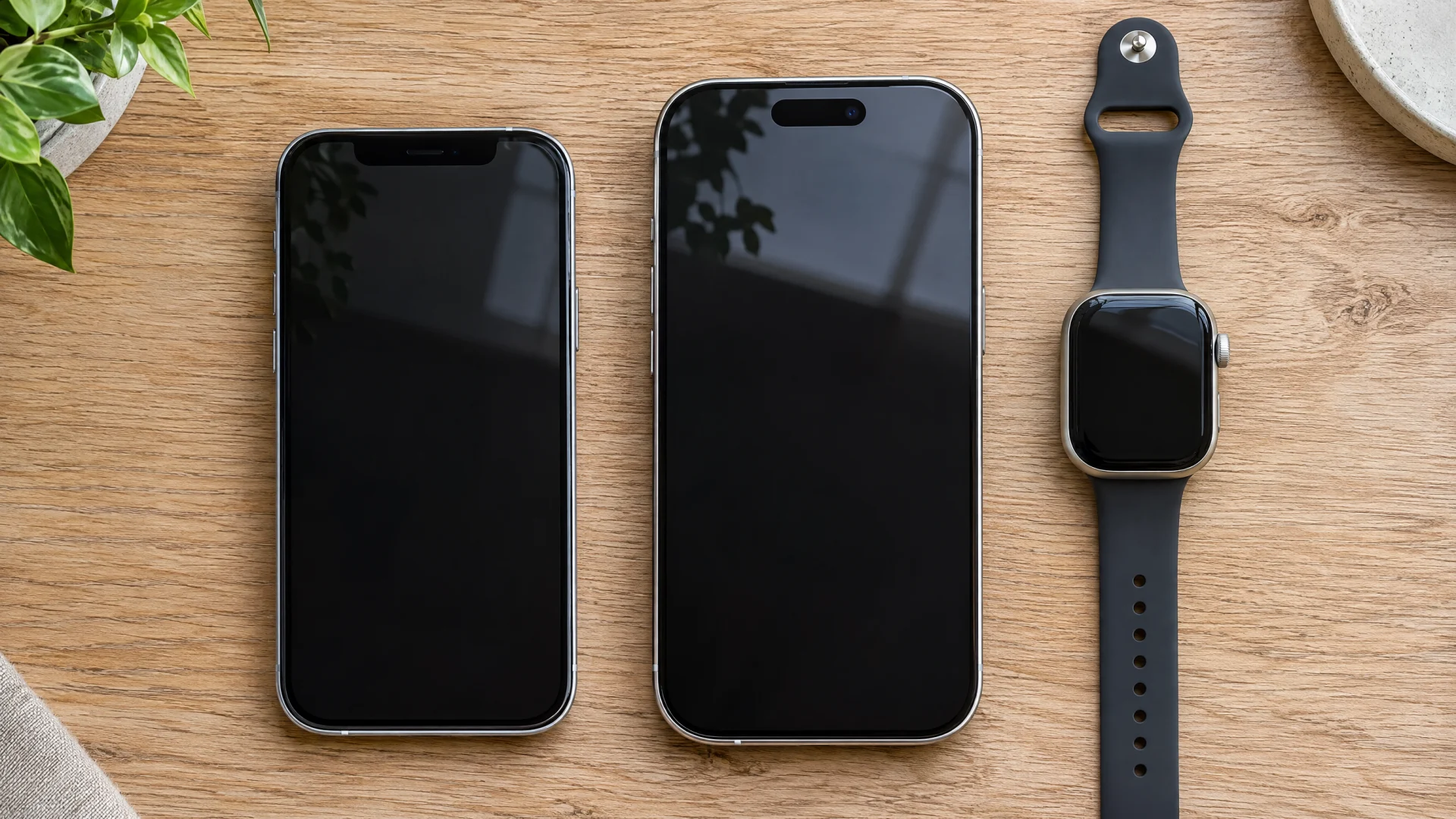
If the old iPhone is lost, broken or already erased, you can't move the watch the usual way. Erase the watch on its own, then pair it like a new one:
- On the watch, open Settings, tap General, then Reset.
- Tap Erase All Content and Settings and confirm.
- Wait for the watch to finish, then pair it with the new iPhone using the steps above.
Erasing on the watch doesn't remove Activation Lock, so you need the Apple Account and password that were used to set the watch up (Apple). If you forgot the watch passcode, see how to reset an Apple Watch without a passcode.
When the new iPhone was restored from an iCloud or computer backup of the old one, the watch backup came with it, because backing up an iPhone also backs up its Apple Watch. During setup on the iPhone, tap Customize Settings and choose that backup.
Apple Watch Won't Pair? Common Causes
From Apple's setup help and pairing help:
- The iPhone asks for a passcode: the watch is still paired with another iPhone. If you don't remember the passcode, erase the watch and set it up again.
- An Activation Lock screen appears: the watch is linked to an Apple Account. Enter that account's email and password. If the watch was previously owned, the previous owner may have to remove it.
- Error message or setup fails: update the iPhone to the latest iOS, then turn the iPhone off and on, and do the same with the watch.
- The watch won't turn on: charge it first.
- The iPhone says it's unable to connect, or the watch shows a clock face: the watch is probably still paired. Apple says to unpair or erase it first, then pair again.
- Pairing is stuck on the animation: see the steps for resetting a watch when pairing stalls.
Can You Connect Apple Watch to an iPad or Android Phone?
No. Apple's setup instructions start with an iPhone, and for current models list iPhone 11 or later as a requirement. There's no setup path for an iPad or an Android phone.
Lost the Watch Before You Could Pair It?
A watch you can't find can't be paired. Our guide to finding a lost Apple Watch covers Find My and the search at home. FindMyGear, our app, lists the Bluetooth devices around your iPhone with a live signal reading that rises as you get closer, which helps when the watch is nearby but out of sight.
FAQ
Do I need Wi-Fi to pair an Apple Watch?
Apple asks for the iPhone to be connected to Wi-Fi or a cellular network, with Bluetooth on. To move a watch to a new iPhone, both iPhones need Wi-Fi.
Will I lose my data when I move my Apple Watch to a new iPhone?
Not if you back up the old iPhone first: backing up an iPhone also backs up the watch. Turn on Health sync in iCloud, or encrypt a computer backup, so Health and Activity data comes too.
Can I pair more than one Apple Watch with one iPhone?
Yes. Apple has a separate guide for pairing another Apple Watch with your iPhone.
Do I have to set a passcode?
No, you can tap Don't Add Passcode, but features like Apple Pay need one.