The Short Answer
There's no separate "add" button for AirPods. They appear in Find My on their own once two things are true: Find My is on on your iPhone or iPad, and the AirPods are paired with that iPhone or iPad while you're signed in to your Apple Account. Then turn on Find My network in the AirPods settings so supported models can be found even when they're away from your phone.
If your AirPods still don't show up, the usual reasons are: Find My is off, the AirPods were paired on a device signed in to a different Apple Account, someone else turned on their Find My network first, or they're used AirPods still linked to the previous owner. Each fix is below.
Which AirPods Can Use the Find My Network
Apple says you can use Find My with all AirPods models, but only some can use the Find My network, which shows their location even when they're out of range of your devices (Apple):
| AirPods | Find My network | What you see in Find My |
|---|---|---|
| AirPods 3, AirPods 4 with Active Noise Cancellation, AirPods 5 with Wireless Charging Case, AirPods Pro (all models), AirPods Max | Yes | Location for up to 24 hours after they last connected, even when not nearby |
| Other AirPods | No | The last time and place they were connected to your device |
How to Add AirPods to Find My
- Turn on Find My on your iPhone or iPad: open Settings, tap your name, tap Find My, then Find My iPhone (or iPad) and turn it on. Turn on Find My network and Send Last Location on the same screen.
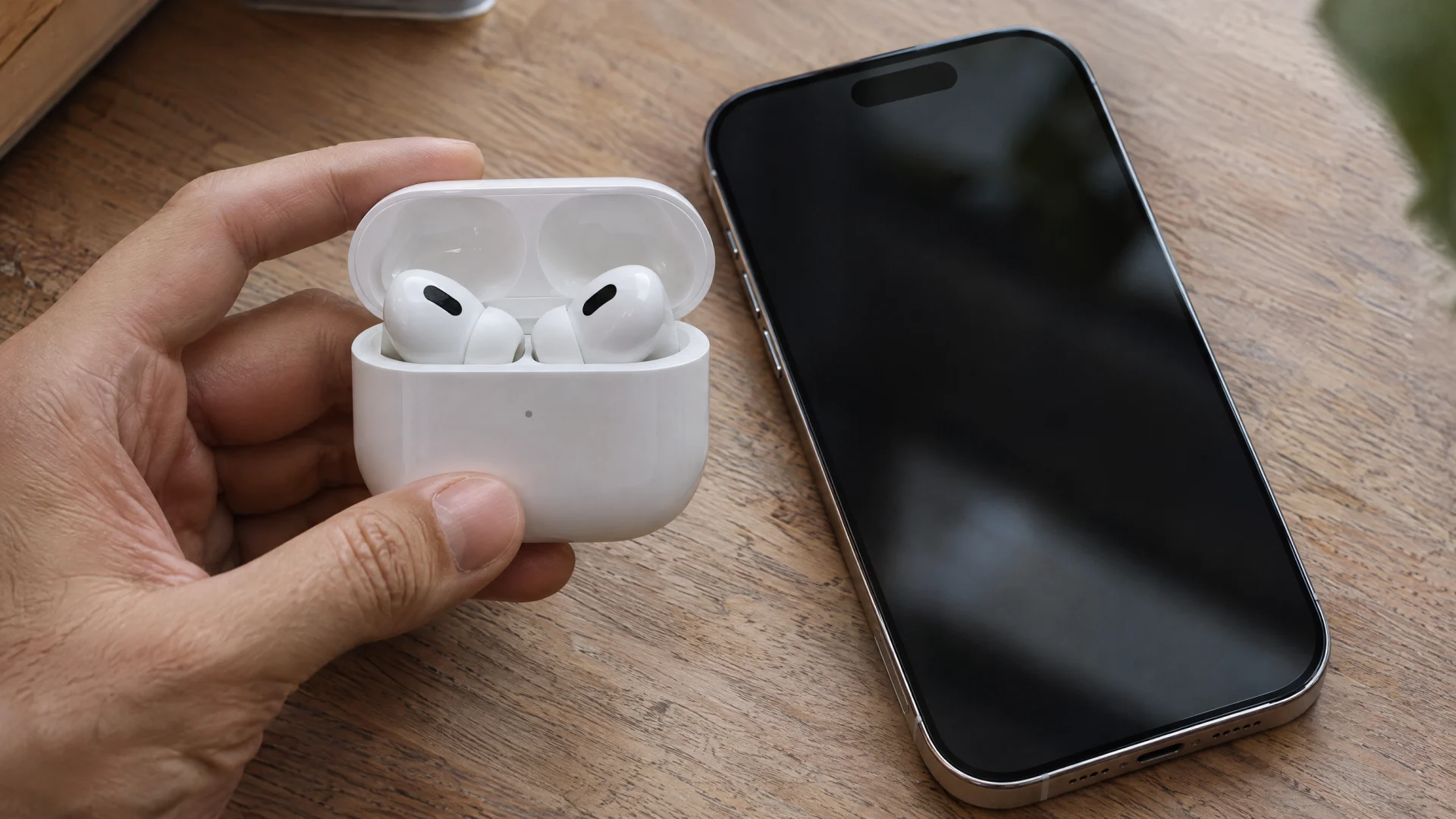
- Pair the AirPods with that iPhone or iPad. Go to Settings > Bluetooth, open the case with the AirPods inside and hold it next to the device until the setup animation appears, then follow the steps. Your device should be connected to Wi-Fi or a cellular network while pairing, or you may not get Find My features.
- Turn on Find My network for the AirPods: with the AirPods connected (open the case or wear one), go to Settings, tap the name of your AirPods near the top, scroll down and turn on Find My network. If you don't see it, tap Find My first. You can also reach it from Settings > Bluetooth, then the More Info button next to your AirPods.
- Check the Find My app: open Find My and tap Devices. Your AirPods should be in the list.
Apple's point to remember: you have to do this before the AirPods are lost. Find My can't locate AirPods offline if the Find My network was off when they went missing (Apple's AirPods guide).
Turn on left-behind alerts
With the Find My network on, supported models can warn you when you leave them behind. In the Find My app, tap Devices, select your AirPods, tap Notify When Left Behind and turn it on. You can add trusted locations, like home, where you won't be alerted. Allow notifications for Find My, or the alert won't reach you.

AirPods Not Showing Up in Find My? Check These
- Find My is off on your iPhone. Check Settings > [your name] > Find My > Find My iPhone. AirPods only appear in Find My through a paired device that has Find My on.
- They were paired on a device with a different Apple Account. Apple says you must pair AirPods with an iPhone or iPad where you're signed in to your Apple Account to see them in Find My.
- Someone else turned on Find My network first. If AirPods are lent or shared between Apple Accounts, Apple says only the person who turned on the Find My network can see them in Find My.
- They're used AirPods still linked to the previous owner. The previous owner has to remove them from their Apple Account first. Our guide to resetting AirPods covers what they need to do.
- Your AirPods don't support the Find My network. Models that aren't on the list above, including AirPods 4 without Active Noise Cancellation, can't show a location away from your phone, only the last time and place they were connected.
- They show up, but as Offline or "No location found". Apple says that means they're out of range or need to charge, and you'll get a notification when they come back online. See what Find My's messages mean.
- Your software is out of date. Apple recommends the latest iOS, iPadOS, macOS or watchOS for the best experience with Find My.
New iPhone, AirPods missing from Find My
Once AirPods are set up with one Apple device, Apple says they connect automatically to your other devices signed in to the same Apple Account. On a new iPhone, sign in with the same Apple Account, turn on Find My, connect the AirPods, then check that Find My network is still on in their settings.
If Find My Can't Locate Them
When Find My only shows an old location, or the AirPods were never added, there's one more clue while they still have charge: their Bluetooth signal. FindMyGear, our app, lists the Bluetooth devices around your iPhone with a live signal reading that rises as you get closer, which helps when the AirPods are somewhere nearby. Our guide to finding lost AirPods covers the case, a single AirPod and dead AirPods.
FAQ
Can I add AirPods to Find My without an iPhone?
Apple's instructions use an iPhone or iPad: the AirPods have to be paired with one where you're signed in to your Apple Account. After that you can see them in Find My on your other Apple devices and at iCloud.com/find.
How long does Find My show my AirPods' location?
For models that support the Find My network, Apple says up to 24 hours after they last connected to your device, even if they're not nearby. Other models show only where they were last connected.
Can someone else see my AirPods in Find My?
Only the person who turned on the Find My network for them. If you share AirPods with someone using a different Apple Account, they may get an alert that AirPods are traveling with them.
Do I need to add both AirPods separately?
No. The pair is added together when you pair them with your iPhone or iPad. Apple notes that for most models, when the two AirPods are separated, Find My shows the location of only one at a time.