The Short Answer
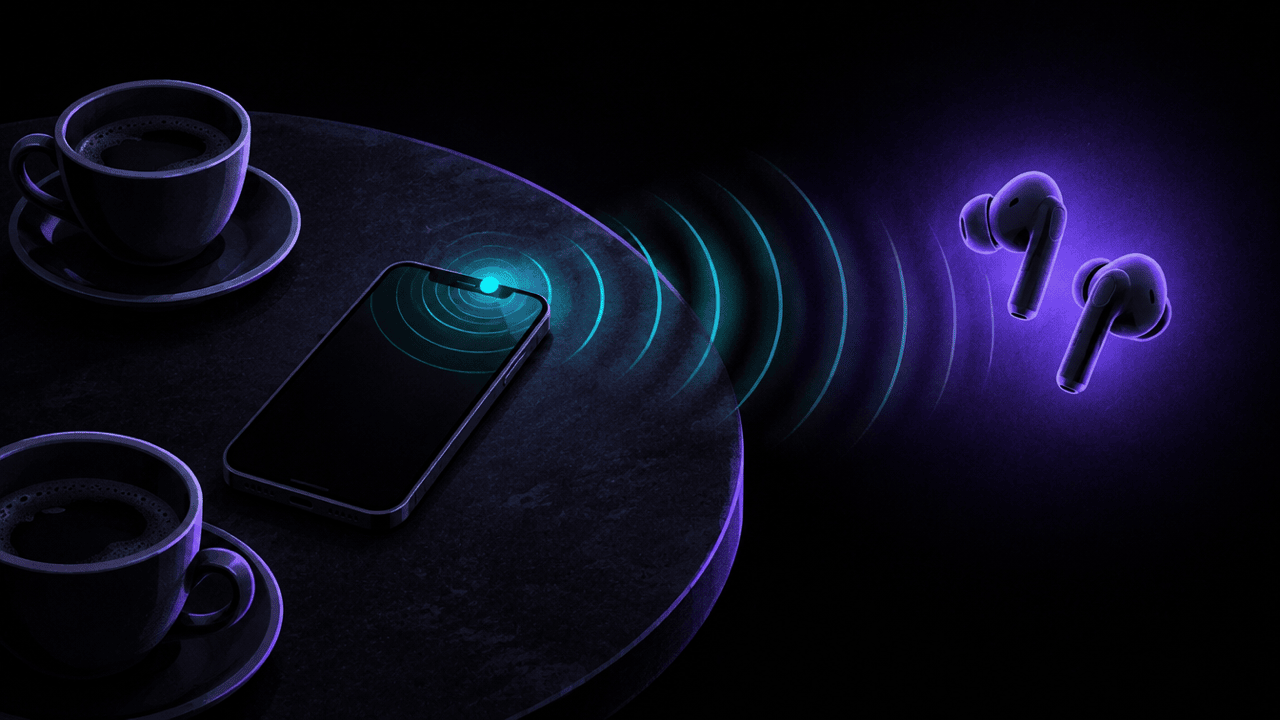
Live Listen is an iPhone accessibility feature that turns the phone into a remote microphone. Your iPhone picks up the sound around it and streams it to your AirPods, supported Beats or Made for iPhone (MFi) hearing aids, so a conversation in a noisy room is easier to hear. It is off until you start it, and you turn it on and off in Settings > Accessibility > Audio & Visual > Live Listen or from the Hearing button in Control Center.
Because the iPhone can sit across the room from the person wearing the earbuds, Live Listen is regularly described online as a spying tool. Below: how it works, how to use it and switch it off, what the newer Remote Control option does, and what to check if you're worried someone is using it on you.
What Is Live Listen on iPhone?
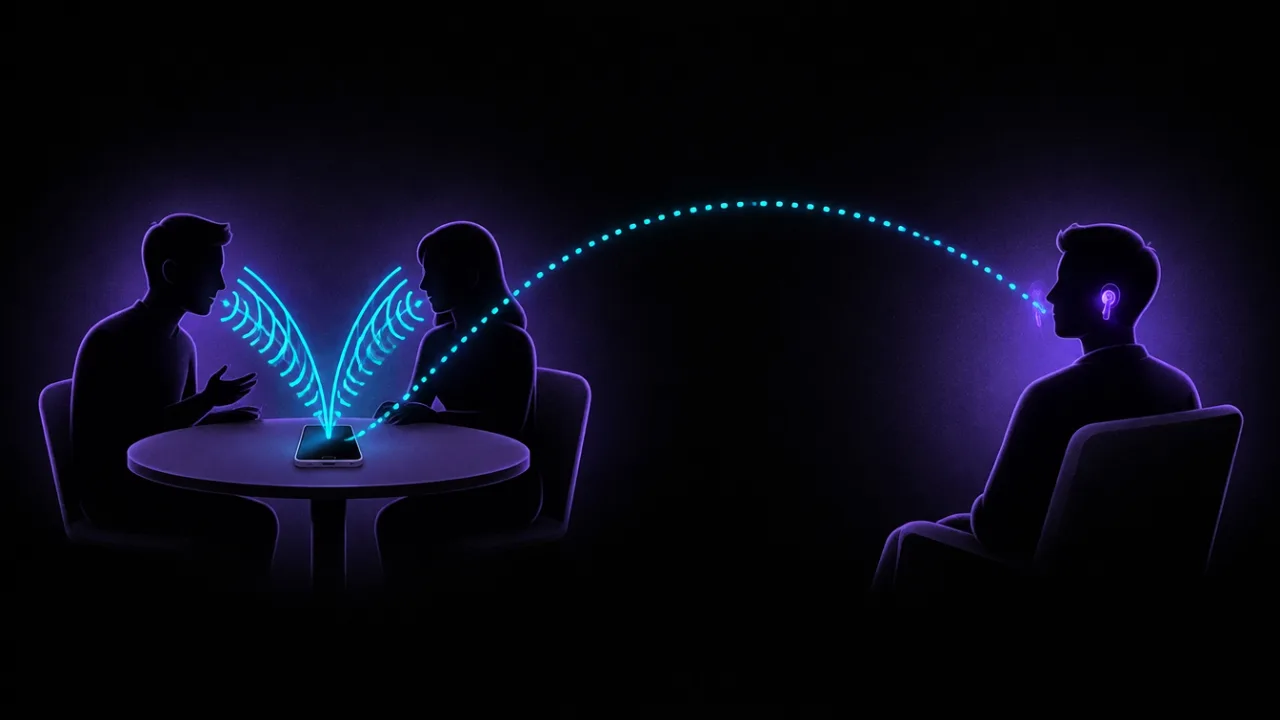
In Apple's words, Live Listen lets you stream sound from the microphone on iPhone to your hearing devices, AirPods or supported Beats headphones. Apple's example is a conversation in a noisy environment: you put the iPhone near the person speaking, and their voice comes through your earbuds louder and clearer.
Since iOS 26, Live Listen can also show Live Captions: a running transcript of what the iPhone hears. Apple notes that Live Captions isn't available in all languages, countries or regions, and that the accuracy may vary.
Apple's Apple Watch guide adds noisy restaurants and lectures, and situations where you'd rather read along than listen.
What You Need
| Requirement | Details |
|---|---|
| iPhone software | iOS 14.3 or later for Live Listen with AirPods and Beats; iOS 26 or later for Live Captions |
| Earbuds or headphones | AirPods, AirPods Pro, AirPods Max, Powerbeats Pro, Beats Fit Pro or Powerbeats Fit |
| Hearing aids | MFi hearing devices paired with the iPhone |
| Connection | The earbuds must be in your ears and connected to the iPhone |
Other Bluetooth headphones are not on Apple's list, so don't expect Live Listen to work with them. You don't need AirPods if you have MFi hearing aids, but you do need one of the supported devices.
How to Turn On Live Listen
- Put on one or both AirPods (or your Beats or hearing aids) and make sure they're connected to your iPhone.
- Go to Settings > Accessibility > Audio & Visual > Live Listen and tap Start Live Listen.
- Place the iPhone near the sound source, for example in the middle of the table.
Quicker ways to start it, from Apple's guide:
- Control Center: tap the Hearing button (an ear icon), tap your AirPods or hearing device, then tap Live Listen. If the button isn't there, add it when you edit Control Center.
- Accessibility Shortcut: if you've set one up, triple-click the side button (or the Home button), tap Hearing Devices, then Live Listen.
- Hearing aids: Settings > Accessibility > Hearing Devices, then turn on Live Listen.
While a session runs, the Live Listen controls in Control Center let you view the captions, rewind a few seconds to catch something you missed, skip forward to the live audio and stop the session.
How to Turn Off Live Listen
- Open Control Center, tap the Hearing button, then tap Live Listen to stop it.
- Or go to Settings > Accessibility > Audio & Visual > Live Listen and stop the session there.
What Is Live Listen Remote Control?
Remote Control is a switch in the same menu (Settings > Accessibility > Audio & Visual > Live Listen). With it on, you can start, stop or jump back in a Live Listen session from your paired Apple Watch or another nearby Apple device signed in to the same Apple Account, such as another iPhone or iPad. The captions appear on that device as well, in real time.
That's useful if you leave the iPhone in the middle of a meeting table and want to read along on your wrist. Apple's watch guide lists the controls: turn Live Listen on or off, go back 10 seconds, skip back to live and view Live Listen Captions.
The viral "your iPhone is listening" warning
At the end of October 2026, US searches for "live listen" jumped, after videos on social media warned that iPhones were secretly listening and keeping transcripts through this menu. Fact-checkers found the claim overstated:
- Live Listen is off until someone starts it.
- Remote Control doesn't turn Live Listen on. It only lets your other devices control a session.
- Apple's guides describe captions shown live during a session; they don't describe a saved recording or transcript.
The part that is true: anyone with a device signed in to your Apple Account could control a session on your iPhone if one is running. If you share an Apple Account with someone, or don't use Live Listen at all, turning Remote Control off costs you nothing.
Can Someone Use Live Listen to Listen to You?
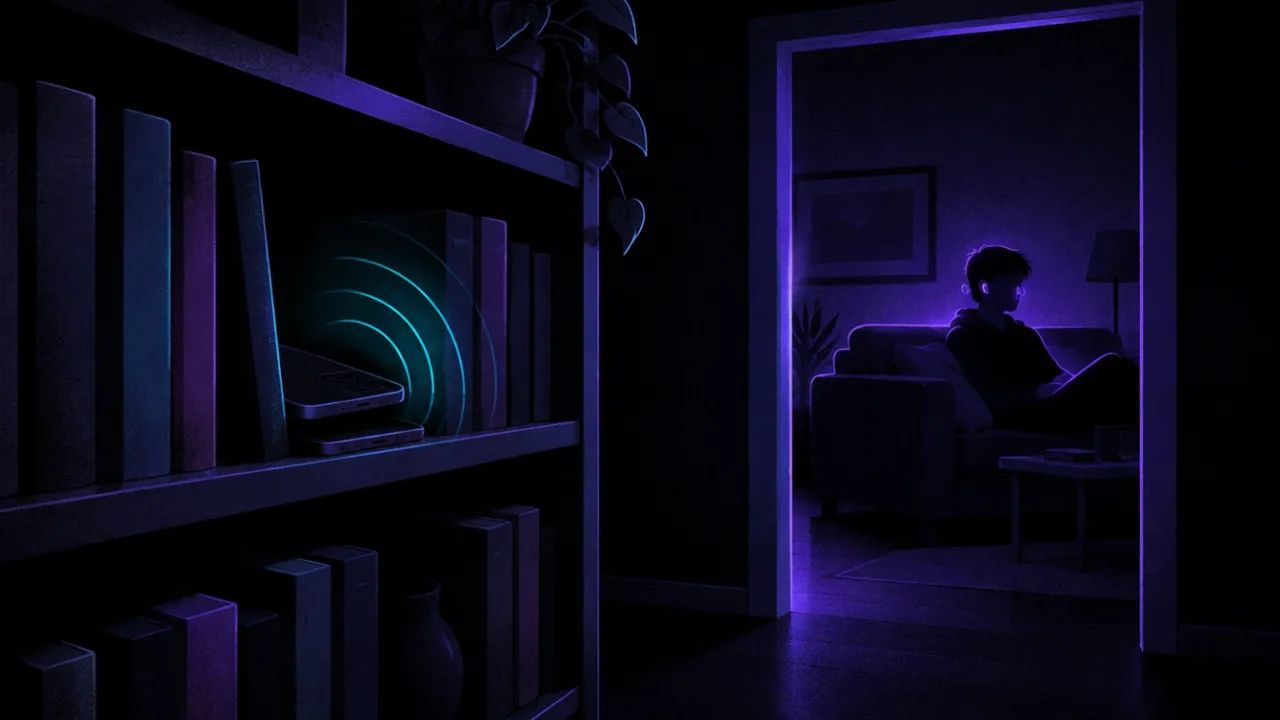
Yes, in one specific way: someone leaves their own iPhone in a room, starts Live Listen and listens through their AirPods from nearby. The audio goes over Bluetooth to earbuds connected to that phone, so the listener has to stay within range, and the phone has to be physically near you.
What that means in practice:
- A phone that's out of place is the sign. An iPhone left on a shelf, in a bag or face down on a table when its owner has stepped out is worth a look.
- Your own iPhone is a risk only with access. Someone would need to unlock it and connect their earbuds, or, with Remote Control on, use a device signed in to your Apple Account. If you think someone else knows your passcode or Apple Account password, change them.
What to check on your iPhone
- Remote Control: Settings > Accessibility > Audio & Visual > Live Listen. Turn Remote Control off if you don't use it.
- Devices on your Apple Account: Settings > [your name], then scroll to the device list. Apple explains how to review and remove devices you don't recognise.
- Safety Check: Settings > Privacy & Security > Safety Check. On iOS 16 or later, Safety Check shows who you share information with, lists the devices on your Apple Account and lets you change your password.
- The microphone indicator: an orange dot or square in the status bar means an app is using the microphone. Open Control Center to see which one.
If you think someone is listening in to stalk or control you, contact the police or a domestic violence hotline (1-800-799-7233 in the US; other countries have their own helplines). Changing passwords or removing devices can alert the other person, so do it when it's safe.
Worried about a hidden device instead?
Live Listen needs a whole phone in the room. A dedicated bug can be the size of a USB charger and send audio over the mobile network, Wi-Fi or Bluetooth. Our guide to finding a listening device covers where they hide and how to check for each kind. For the Bluetooth ones, FindMyGear, our app, lists the Bluetooth devices around your iPhone with a live signal reading that rises as you get closer, so you can walk towards anything you can't explain.
Why Is Live Listen Greyed Out or Not Working?
- No supported device connected. Live Listen needs AirPods, supported Beats or MFi hearing aids connected to the iPhone. Put them in your ears and check they're connected in Control Center.
- Unsupported headphones. Other Bluetooth headphones aren't on Apple's list.
- Old iOS. You need iOS 14.3 or later with AirPods and Beats. Update in Settings > General > Software Update.
- No captions. Live Captions in Live Listen needs iOS 26 or later and isn't available in every language or region.
- The sound is quiet or muffled. Move the iPhone closer to the person speaking and keep its microphones uncovered.
If your AirPods won't connect at all, start with our AirPods connection fixes.
FAQ
Does Live Listen record conversations?
Apple describes Live Listen as live audio, with live captions on iOS 26 and later. Its guides don't describe saving a recording or a transcript after the session.
Is Live Listen only for AirPods?
No. It also works with Powerbeats Pro, Beats Fit Pro, Powerbeats Fit and MFi hearing aids, but not with other Bluetooth headphones.
Can I use Live Listen from my Apple Watch?
Yes. Turn on Remote Control on the iPhone, add Hearing Controls to Control Center on the watch, and you can start, stop and rewind a session and read the captions on your wrist. Both devices must be signed in to the same Apple Account.
Is there Live Listen on Android?
Live Listen is an Apple feature. Android's closest equivalent is Google's Sound Amplifier app, which amplifies speech around you through your headphones.