Before You Reset: Remove It From the Apple Account
An AirTag can belong to only one Apple Account at a time, Apple explains in its reset guide. Apple calls this link Find My Lock, and it can't remove it for you, according to its guide to items paired with another account. So the order matters:
- The current owner removes it from their Apple Account.
- Reset it only if that removal happened while the AirTag was out of range, or if it still won't pair.
How the owner removes an AirTag
On an iPhone or iPad, as described in Apple's Find My guide:
- Open Find My and tap Items.
- Tap the AirTag, then the details button.
- Bring the AirTag near the iPhone, if you can.
- Tap Remove and confirm.
If the AirTag isn't nearby, the removal still works, but the AirTag must then be reset before anyone else can register it. Apple notes that you can't remove an AirTag from an Apple Account on a Mac.
How to Reset a 1st Generation AirTag
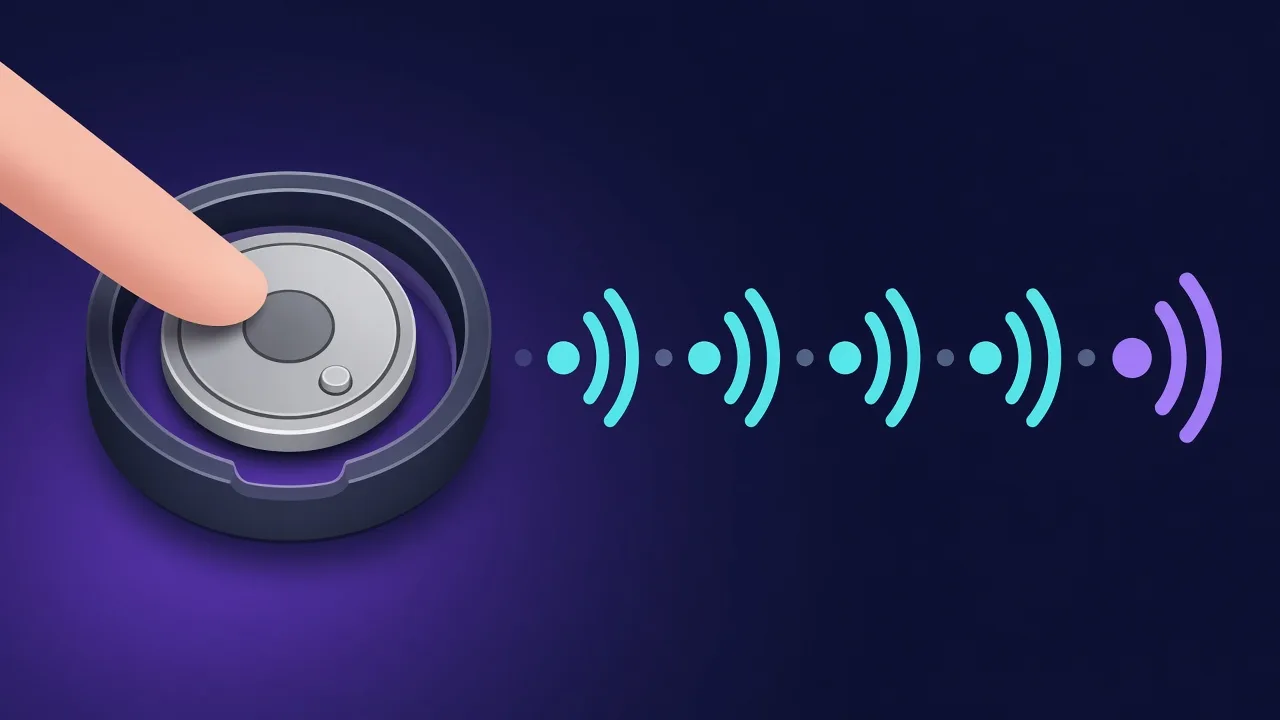
From Apple's reset guide:
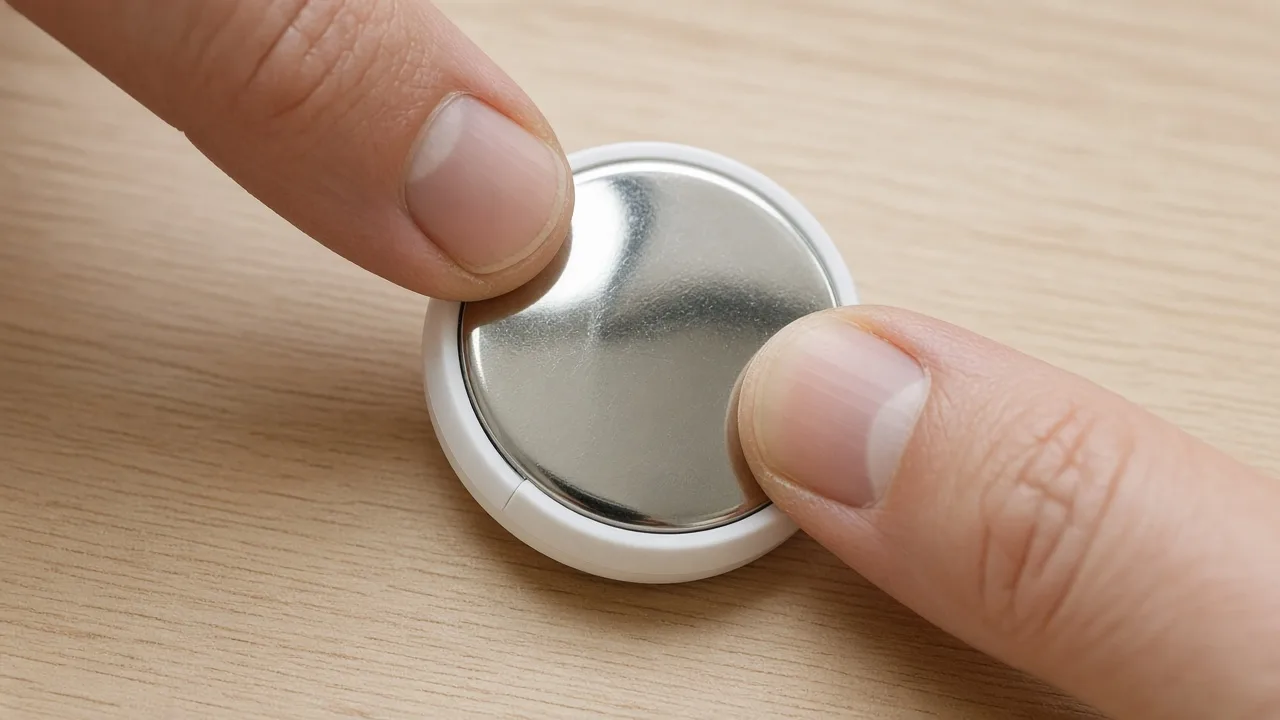
- Press down on the polished stainless steel cover and rotate it anticlockwise until it stops.
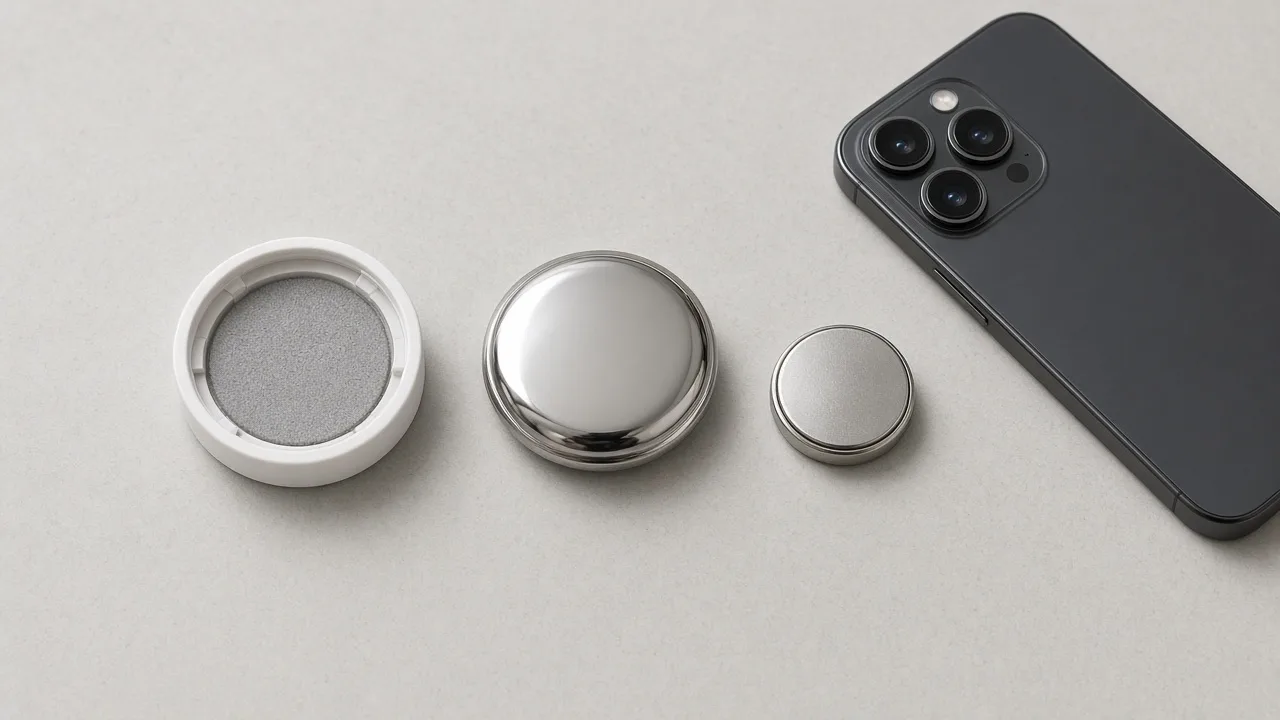
- Remove the cover and the battery.
- Put the battery back in.
- Press down on the battery for about 2 seconds until you hear a sound. That means the battery is connected.
- When the sound finishes, remove and replace the battery again, and press until you hear a sound. Repeat until you have done this five times in total.
- The fifth sound is different from the first four. That means the AirTag is ready to pair. If it isn't different, keep going until it is.
- Replace the cover, lining up the three tabs with the three slots, press down and rotate clockwise until it stops.
How to Reset a 2nd Generation AirTag
The second generation needs a slightly different rhythm, according to the same Apple guide:
- Open the cover and remove the battery, as above.
- Put the battery back in and press for about 2 seconds until you hear a sound, then keep pressing for 2 more seconds.
- When the sound finishes, remove the battery and wait 12 seconds.
- Repeat the insert, press and remove cycle four more times, for five sounds in total.
- The fifth sound is different. You may need to press the battery for up to 12 seconds before it plays. If it isn't different, keep going.
- Replace the cover and rotate it clockwise until it stops.
Apple's guide to adding an AirTag notes that a second-generation AirTag needs iOS or iPadOS 26.2.1 or later to set up.
"This AirTag Is Paired to Another Apple Account"
You see this message when the AirTag still belongs to someone else. Apple's advice is to ask the previous owner to remove it from their Apple Account; there is no way around Find My Lock. If they already removed it while the AirTag was out of range, reset it using the steps above and it will pair.
Bought one second-hand? Ask the seller to remove it from their account before you pay, and test that it pairs.
Giving an AirTag to Someone Else
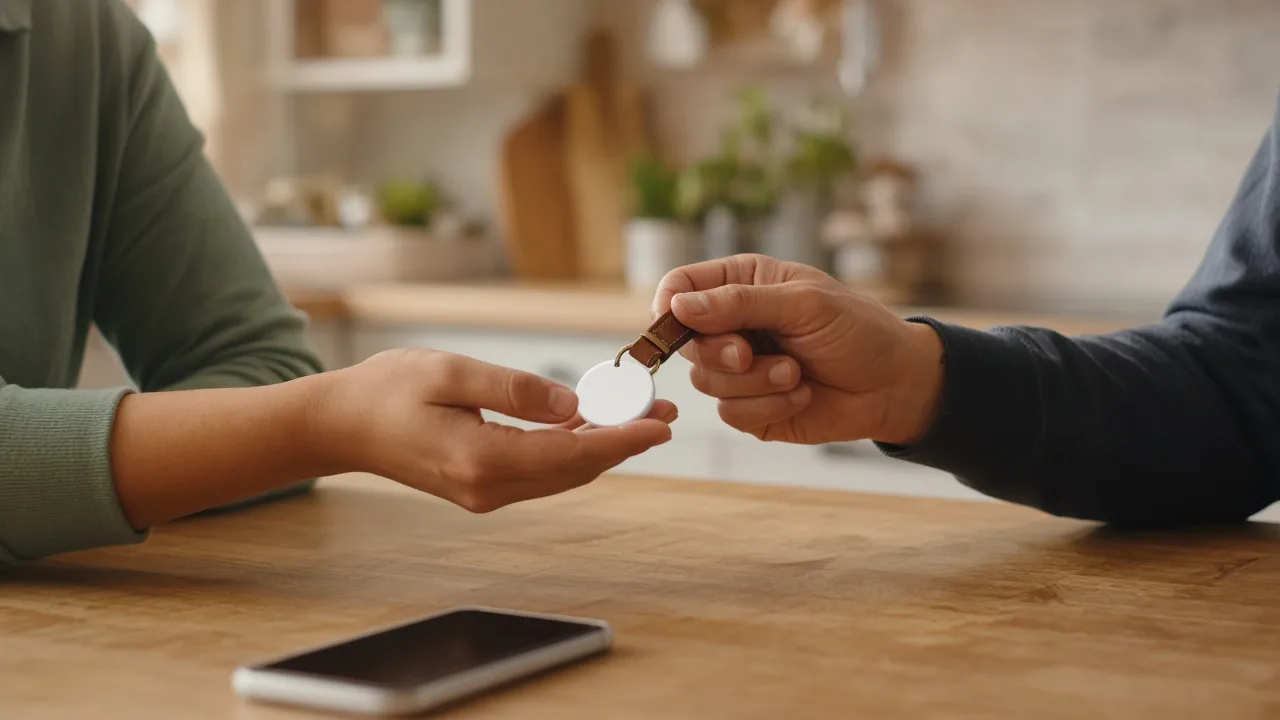
- Remove it from your Apple Account in Find My, with the AirTag next to your iPhone.
- Hand it over. The new owner holds it near their iPhone and taps Connect.
- If it won't connect, they reset it and try again.
If you only want to let a family member or friend see it, you don't need to give it away. You can share an AirTag's location with other people instead, which also stops it from alerting them that it is travelling with them.
Found an AirTag That Isn't Yours?
Don't reset an unknown AirTag you found on your belongings. Resetting destroys evidence you may need, and you can't register it to yourself anyway. Photograph it, read its serial number by holding it to your phone, and follow our guide on what to do in the first hour after finding a tracker.